> ## Documentation Index
> Fetch the complete documentation index at: https://docs.lerian.studio/llms.txt
> Use this file to discover all available pages before exploring further.
# Managing Ledgers
> Create, edit, and delete the Ledgers in your Organization directly from the Midaz Module.
Ledgers are essential for managing and organizing financial transactions within an Account. You can manage the Ledgers in your Organization directly from **Midaz Module**.
## Current Ledger
***
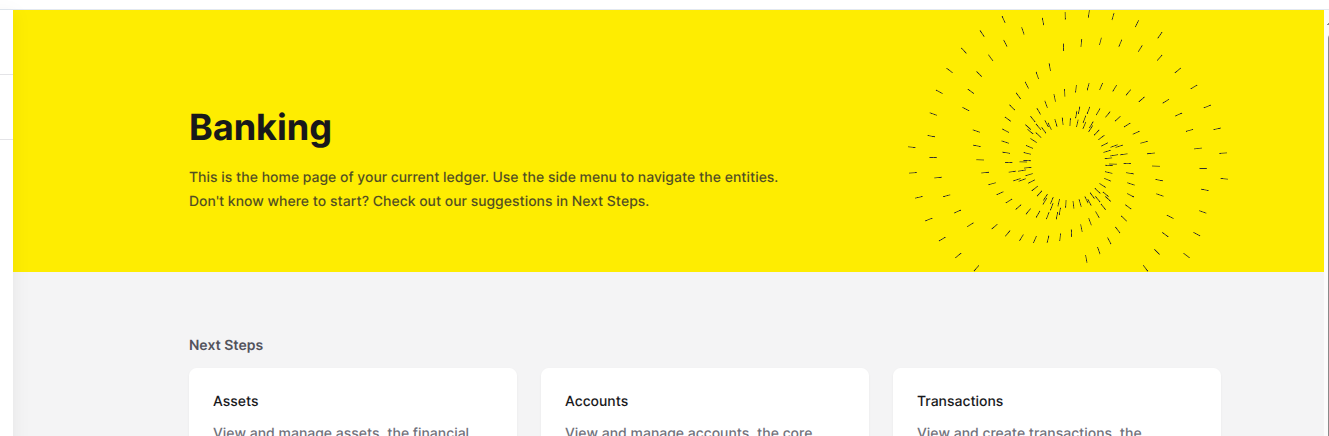
To help you stay oriented, the name of the currently selected Ledger will appear on the header of the home page (*Figure 1*).
 ## Accessing the Ledgers page
***
To open the **Ledgers** page, click the **Ledgers** option in the **Foundation** section of the left sidebar menu.
The **Ledgers** page will display a list of all previously created Ledgers with the current Ledger selected.
### Available actions
From the **Ledgers** page, you can:
## Ledger settings
***
Each Ledger has a **Settings** tab where you can enable validation rules for Accounts and Transactions.
On the **Ledgers** page, locate the Ledger you want to configure. Click the three dots () in the **Actions** column and select **Details**.
In the sidebar, click the **Settings** tab.
Enable or disable **Validate Account Type** and **Validate Routes** according to how strict this Ledger should be.
### Available settings
| Setting | What it controls | When to enable |
| --------------------- | ------------------------------------------------------------------------ | ------------------------------------------------------------------- |
| Validate Account Type | Requires new Accounts to use an Account Type registered for this Ledger. | Enable when Accounts must follow a controlled classification model. |
| Validate Routes | Requires Transactions to match configured Accounting Routes. | Enable after your Accounting Routes are planned or configured. |
If **Validate Routes** is enabled before routes exist, Transactions that do not match an available route will fail validation.
## Accessing the Ledgers page
***
To open the **Ledgers** page, click the **Ledgers** option in the **Foundation** section of the left sidebar menu.
The **Ledgers** page will display a list of all previously created Ledgers with the current Ledger selected.
### Available actions
From the **Ledgers** page, you can:
## Ledger settings
***
Each Ledger has a **Settings** tab where you can enable validation rules for Accounts and Transactions.
On the **Ledgers** page, locate the Ledger you want to configure. Click the three dots () in the **Actions** column and select **Details**.
In the sidebar, click the **Settings** tab.
Enable or disable **Validate Account Type** and **Validate Routes** according to how strict this Ledger should be.
### Available settings
| Setting | What it controls | When to enable |
| --------------------- | ------------------------------------------------------------------------ | ------------------------------------------------------------------- |
| Validate Account Type | Requires new Accounts to use an Account Type registered for this Ledger. | Enable when Accounts must follow a controlled classification model. |
| Validate Routes | Requires Transactions to match configured Accounting Routes. | Enable after your Accounting Routes are planned or configured. |
If **Validate Routes** is enabled before routes exist, Transactions that do not match an available route will fail validation.