

Sign in
1
Go to clients.lerian.studio.
2
Enter your email and select Continue.
3
Sign in with your password, or with single sign-on when your institution uses it. If you registered a passkey, the page also offers it.
4
If two-factor authentication is on for your account, enter the 6-digit code from your authenticator app, or a backup code.
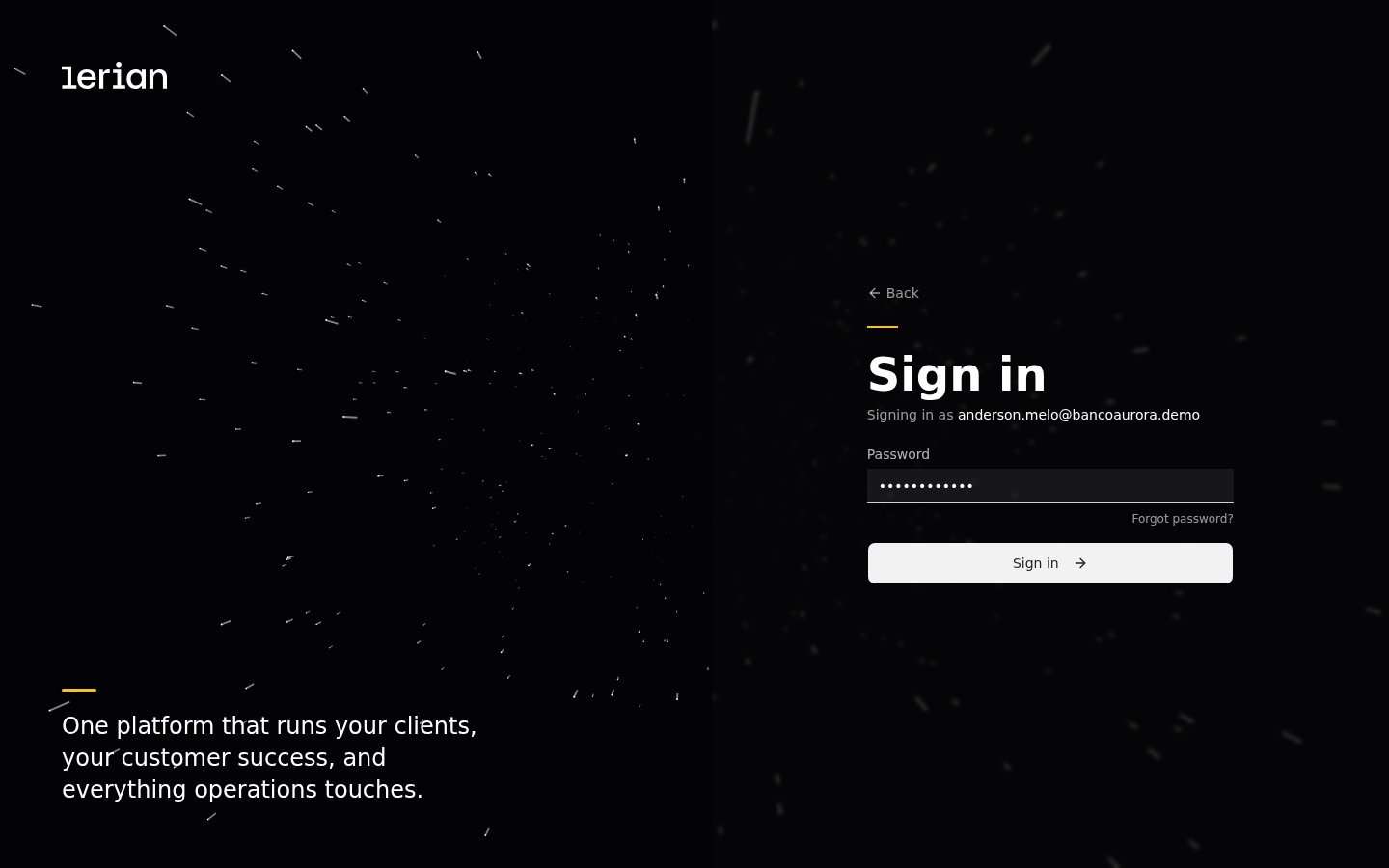
Figure 1. The password step of the sign-in page
What you see after you sign in
The sidebar lists only the areas your permissions give you, such as Tickets, Dashboard, and Reports. The portal shows its labels in English unless the user picks another language in the account menu.
- Tickets lists your institution’s tickets and opens each one. New ticket is at the top of the sidebar.
- Dashboard shows ticket and SLA metrics.
- Reports has ticket reports that you filter, preview, and export.
Open a ticket
1
Select New ticket.
2
Choose the Type, the Environment, and the Priority.
3
Write a Summary and a Description.
4
Attach files if they help, then select Create Ticket.
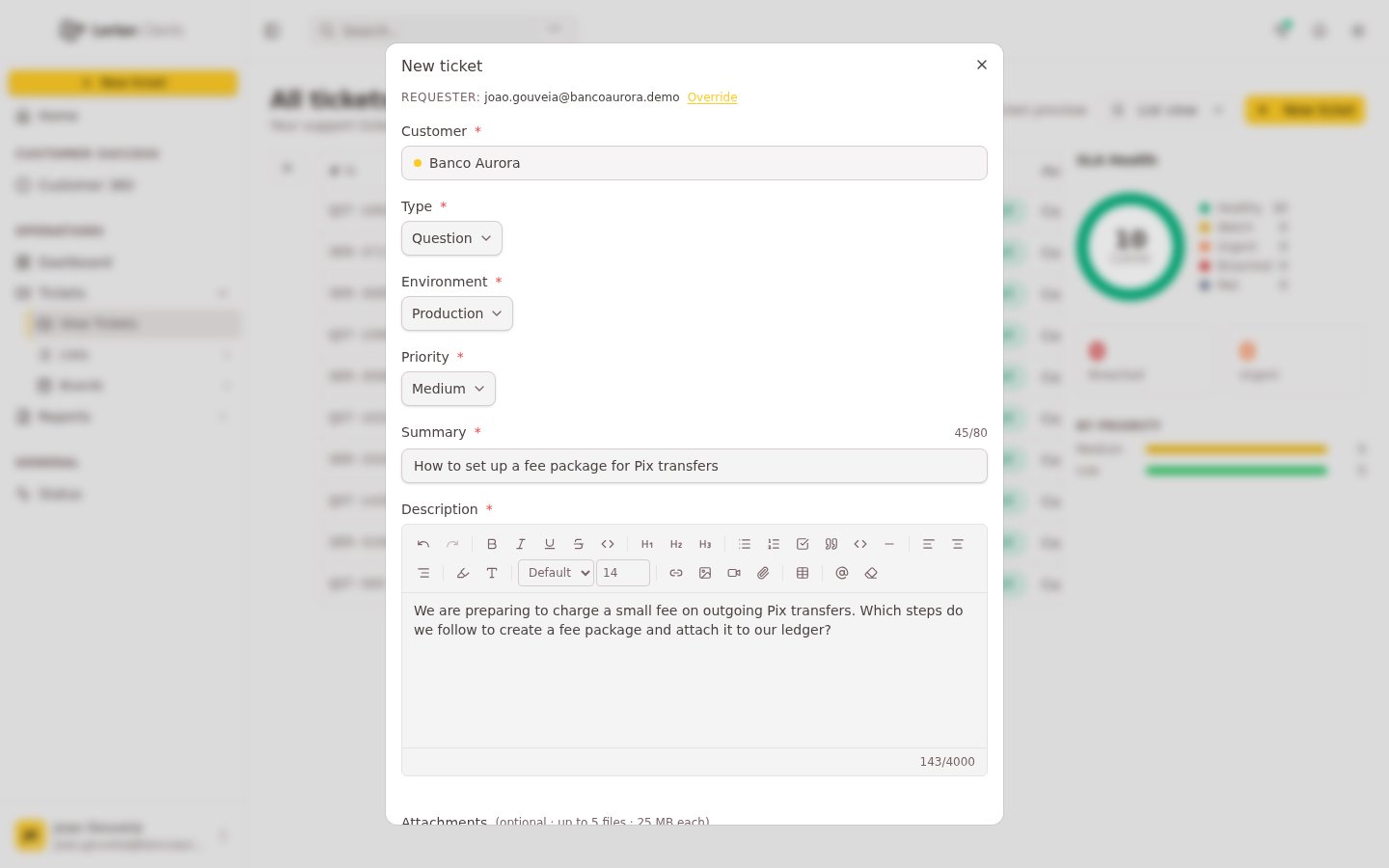
Figure 2. The New ticket form, filled in
Some ticket types add more fields to the form. Fill in each field that has an asterisk.
Follow a ticket
Tickets lists your institution’s tickets with their number, title, status, priority, and SLA. Select a ticket to open it.
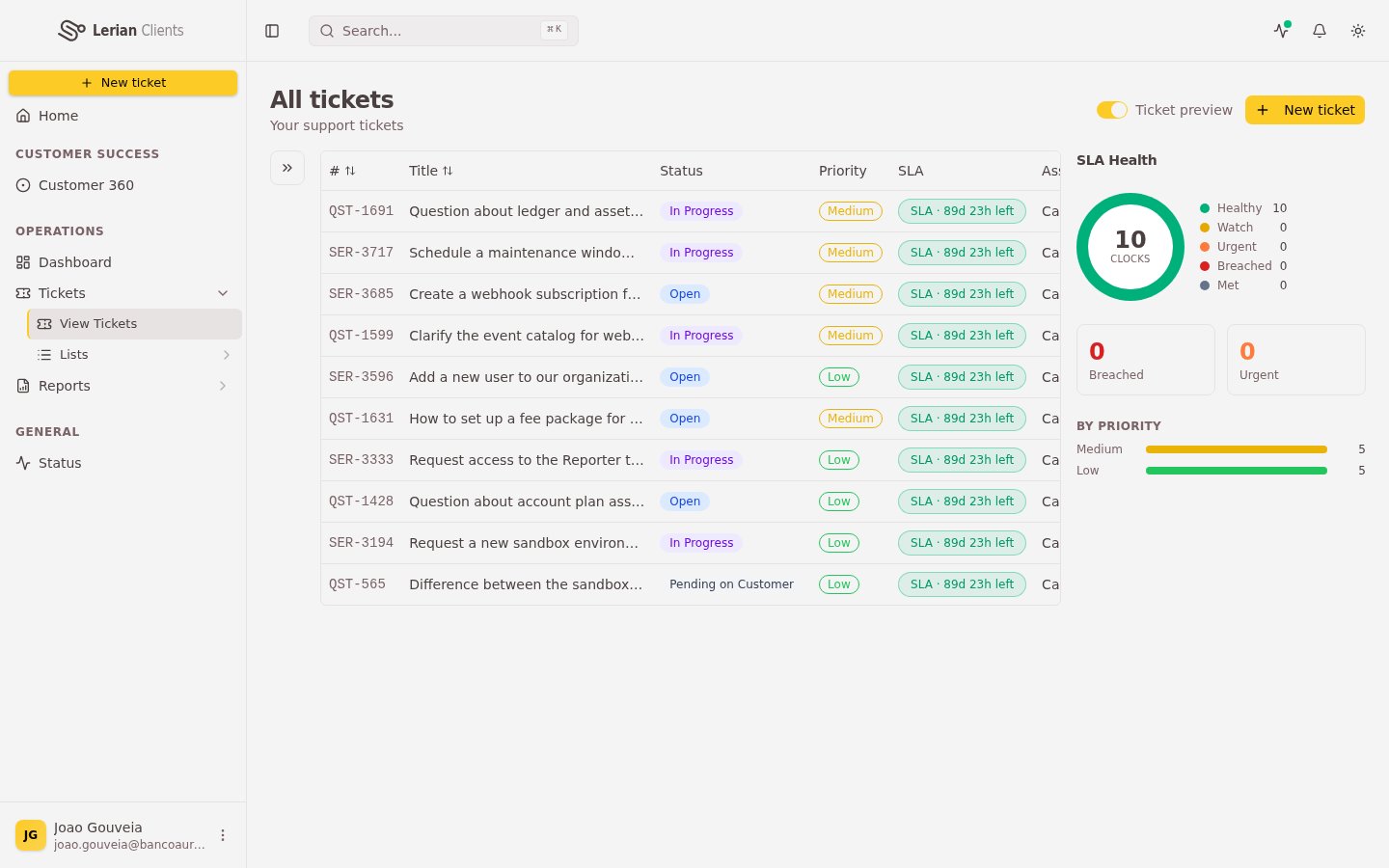
Figure 3. The ticket list, with the SLA badge on each ticket and the SLA health summary on the right
- The status. The Lerian team moves a ticket from one status to the next. Pending on Customer means the team waits for information from you.
- The SLA badge. It shows the time left, or how long ago the SLA was breached.
- The priority, the assignee, the requester, and the watchers.
- The description, the attachments, and the conversation.
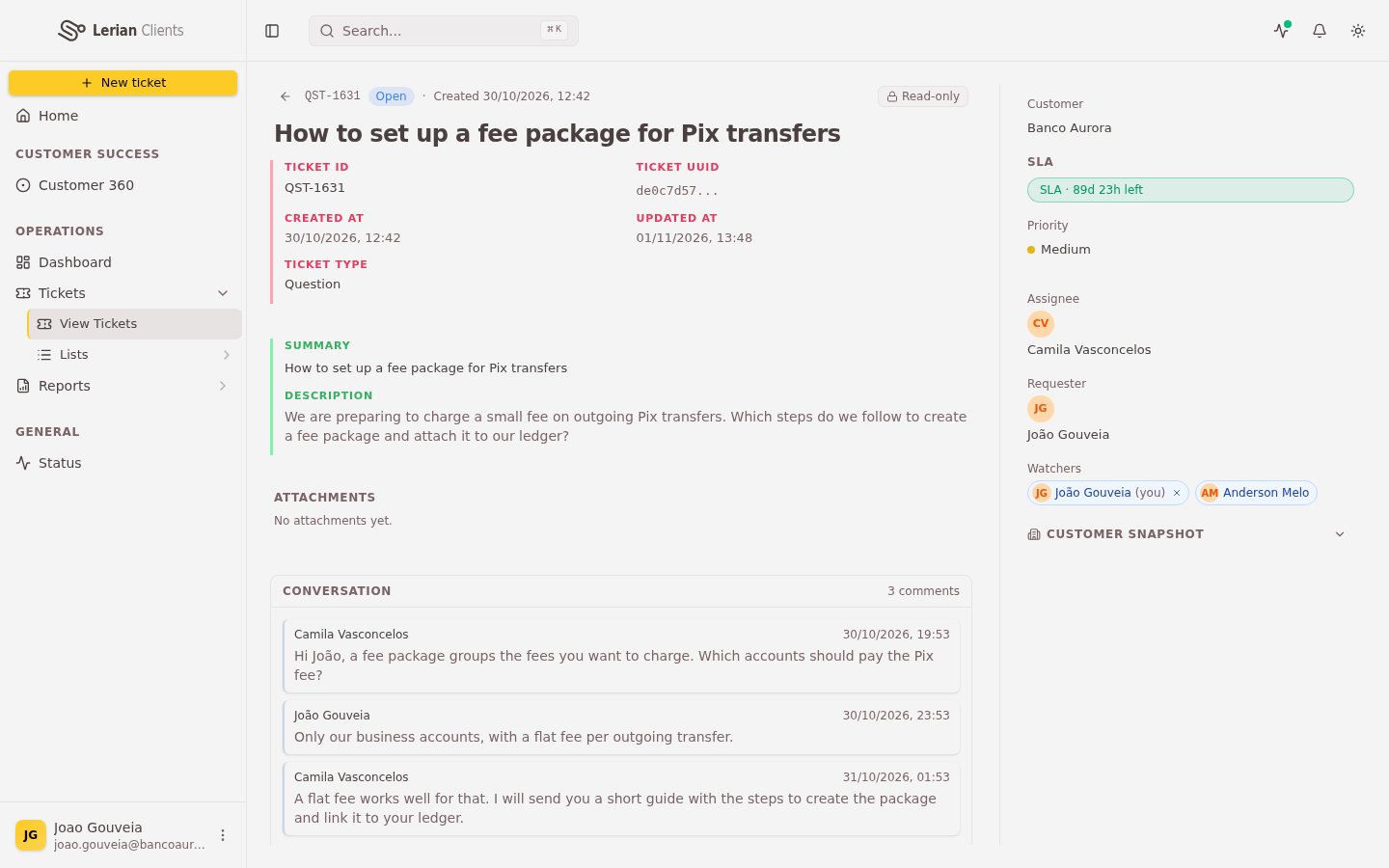
Figure 4. A ticket page with the SLA badge and the conversation
Answer a ticket
1
Open the ticket.
2
Write your reply in the Write a comment box under the conversation. You can format the text, add links and images, and attach files.
3
Send the comment.
Who can do what
Permission groups decide what each user does in Lerian Clients. Opening a ticket, commenting on a ticket, seeing the SLA, seeing the history of a ticket, and exporting reports are separate permissions. Creating, editing, blocking, and deleting the users of your institution need two things. The user needs a permission group that grants it, and the account needs the user-management setting. To change your access, ask a user manager of your institution.
Still need help?
If you are still unsure where your issue fits, email us at suporte@lerian.studio. We route your message to the right team.