

Important transition: Midaz Console is now part of Lerian Console as the Midaz Module. All existing functionality remains available, along with new integrations and platform features.
Start here first
New to Midaz? Start with these pages. They show what to create, in which order, and how the main components work together.
Setup path
Follow the recommended setup order for Organizations, Ledgers, Assets, Accounts, Routes, and Transactions.
Midaz Console concepts map
Learn how Midaz components connect and how they support financial operations.
Midaz Console troubleshooting
Resolve common issues related to configuration, routes, permissions, and transactions.
What you can do
From the Midaz Module, you can:
- Manage organizations and ledgers — Create the operational structure used by your financial environment
- Configure assets — Define currencies, tokens, and other asset types used across ledgers
- Set up accounts — Create accounts with account types, portfolios, and segments
- Configure accounting routes — Define how operations and transactions move assets between accounts
- Monitor transactions — Track financial movements across organizations and ledgers
- Manage Holders and Alias Accounts — Use the integrated CRM to register account owners and link them to ledger accounts
- Access plugins — Enable and configure capabilities such as Fees Engine from the Settings page
Recommended setup order
For a new environment, we recommend configuring Midaz in the following order:
1
Create an Organization
Define the top-level structure that groups your ledgers and operations.
2
Create a Ledger
Create the ledger that will store balances, accounts, and transactions.
3
Configure Ledger settings
Adjust operational and accounting settings for the ledger.
4
Create Assets
Define the currencies or asset types that will circulate in the ledger.
5
Configure Account Types
Define how accounts behave within the financial structure.
6
Create Accounts
Create the accounts that will hold balances and participate in transactions.
7
Configure Portfolios and Segments
Organize accounts based on business or operational needs.
8
Create Accounting Routes
Define how transactions move assets between accounts.
9
Create Transactions
Start recording and monitoring financial operations.
10
Enable Plugins
Activate optional platform capabilities such as Fees Engine.
Accessing Midaz
To open Midaz, select the Midaz Module from the Lerian Console product launcher (Figure 1).
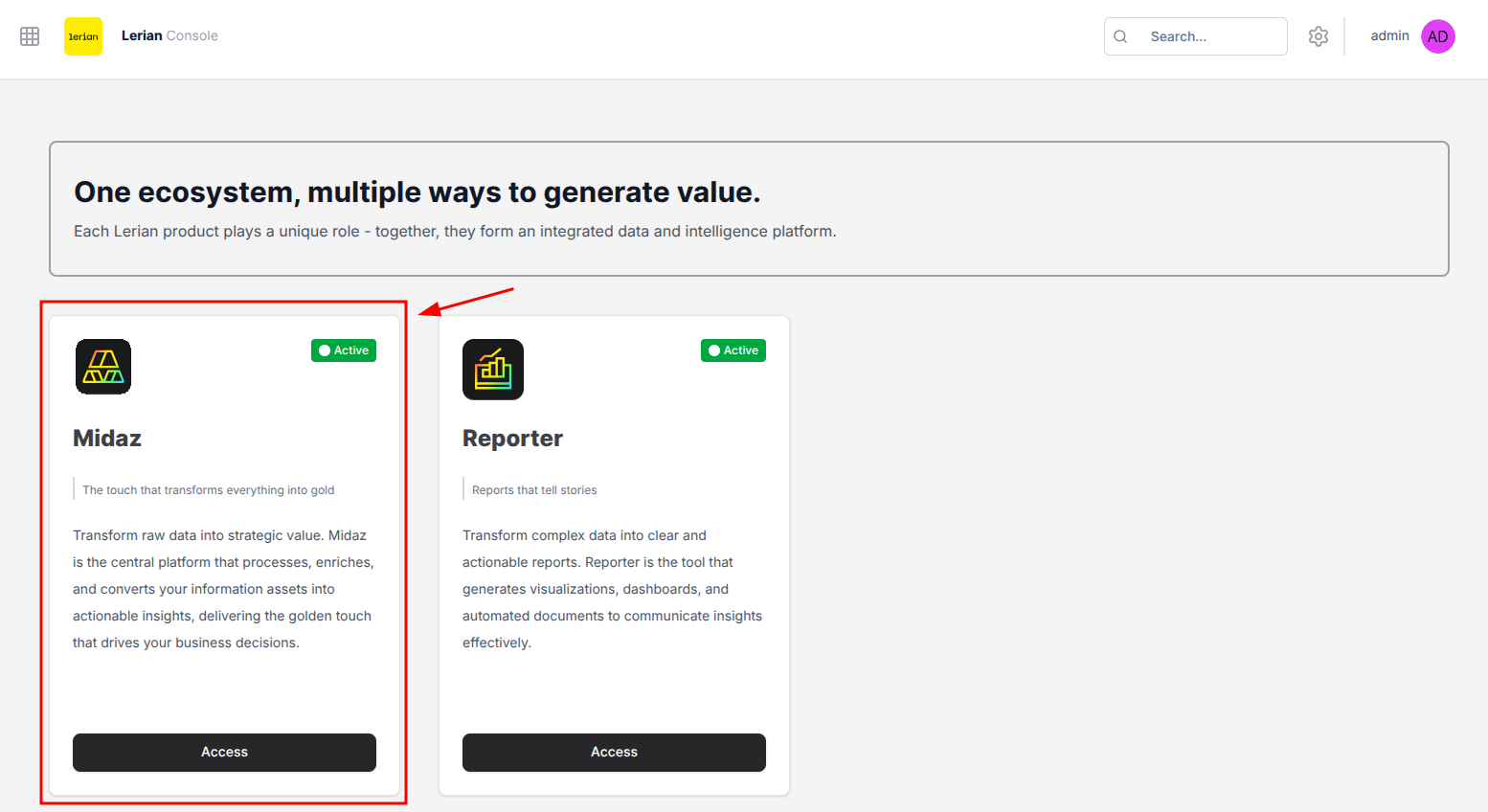
Figure 1. The card used to access the Midaz Module.
Available features
The sidebar follows the order in which most teams build their environment. You start with Foundation, then move to Accounting, Accounts, Transactions, and finally Plugins.
Foundation
Configure Organizations, Ledgers, Assets, and Account Types that support your financial structure.
Accounting
Configure Accounting Routes that control how assets move through the system.
Accounts
Manage Accounts, Holders, Aliases, Segments, and Portfolios.
Transactions
Create and monitor transactions that transfer assets between accounts.
Plugins
Extend Midaz with integrated capabilities such as Fees Engine.
Migrating from Midaz Console
If you’re currently using the standalone Midaz Console, here’s what changes when moving to Lerian Console.
Why migrate to Lerian Console?
- Unified platform — Access Midaz and other Lerian products from a single interface
- New platform features — Lerian releases new improvements and capabilities only in Lerian Console
- Integrated workflows — Connect Midaz with plugins and other platform modules
- Simplified navigation — Work with a consistent operational experience across products
What stays the same?
- All core Midaz capabilities remain available
- Existing data and configurations continue to work
- Operational workflows remain familiar for current users