

Accessing the Disputes page
Navigate to Matcher > Exception Handling > Disputes in the left sidebar. The page displays a paginated list of all disputes for the selected context, with a status rail summarizing Open, Pending, Won, and Lost counts.
Filters
Use the filter bar at the top of the list to narrow results:
A Clear filters button appears when any filter is active.
Amount Mismatch is a create-only category: you can open a dispute with it, but the list filter does not offer it because the disputes API does not accept it as a filter value.
Disputes table
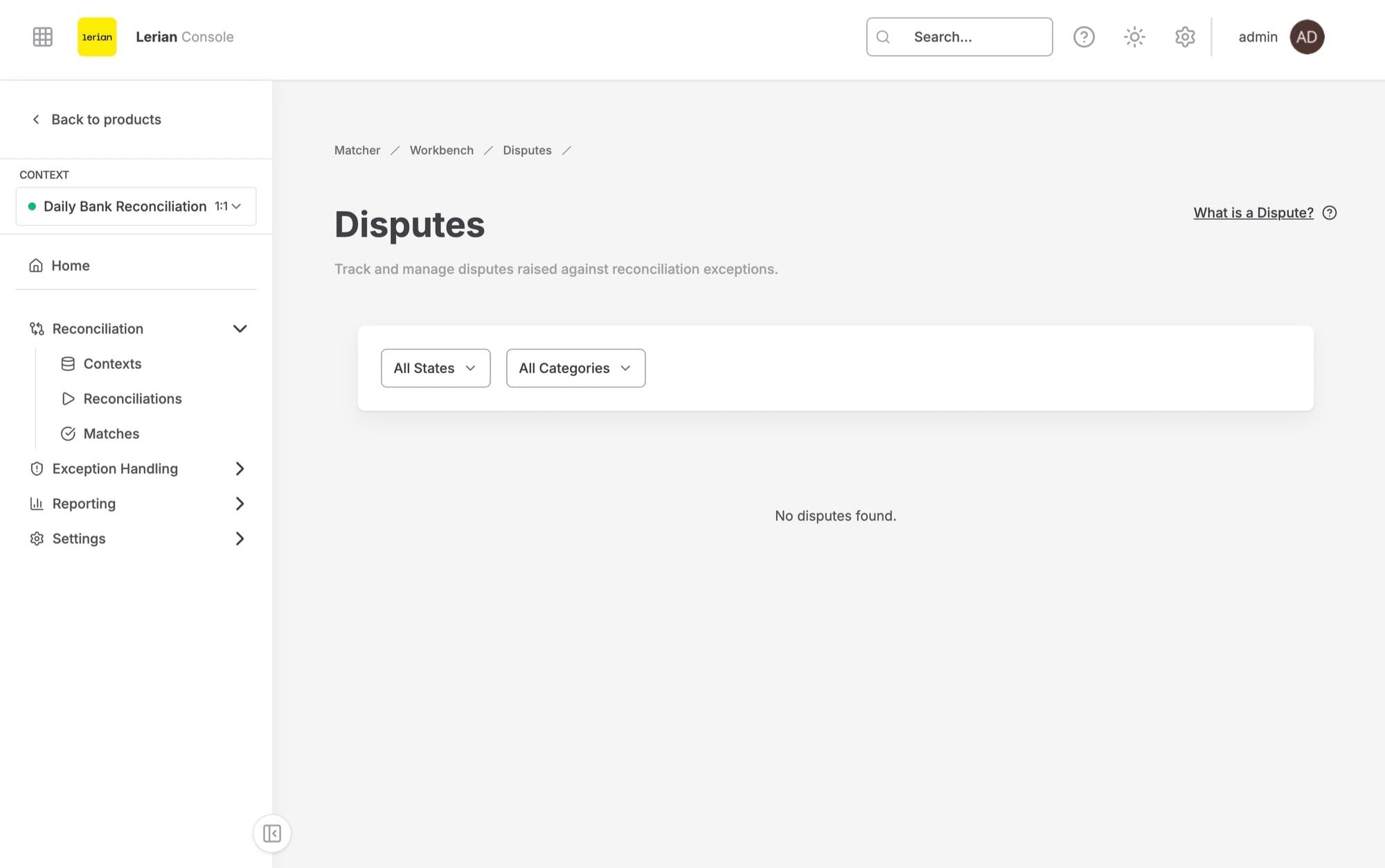
Figure 1. The Disputes list page.
Click a dispute ID to open the dispute detail page.
Dispute states
Dispute categories
Dispute detail page
Click a dispute ID to open its detail page. The page header shows the dispute with the Submit evidence and Close dispute actions, followed by a status rail (Opened by, Updated, State) and three panels: Information, Resolution, and Evidence.
Information
The Information panel displays read-only details about the dispute:Evidence
The Evidence panel lists all submitted evidence items, including who submitted each item, when, the comment, and an Open attachment link when a file is attached. If nothing has been submitted, the panel reads “No evidence submitted yet.” To add evidence, click Submit evidence in the page header. The dialog has two tabs:Evidence can be submitted while the dispute is in any non-terminal state: Draft, Open, or Pending Evidence. Once a dispute is Won or Lost, it is closed to new evidence.
Resolution
The Resolution panel shows the recorded outcome as plain text: the Resolution explanation and, if the dispute was reopened, the Reopen reason. To close a dispute, click Close dispute in the page header and fill in the dialog:A dispute can be closed from any non-terminal state (Draft, Open, or Pending Evidence).