

Accessing the Fee Schedules page
Navigate to Matcher > Settings > Fee Schedules in the left sidebar.
Fee schedules table
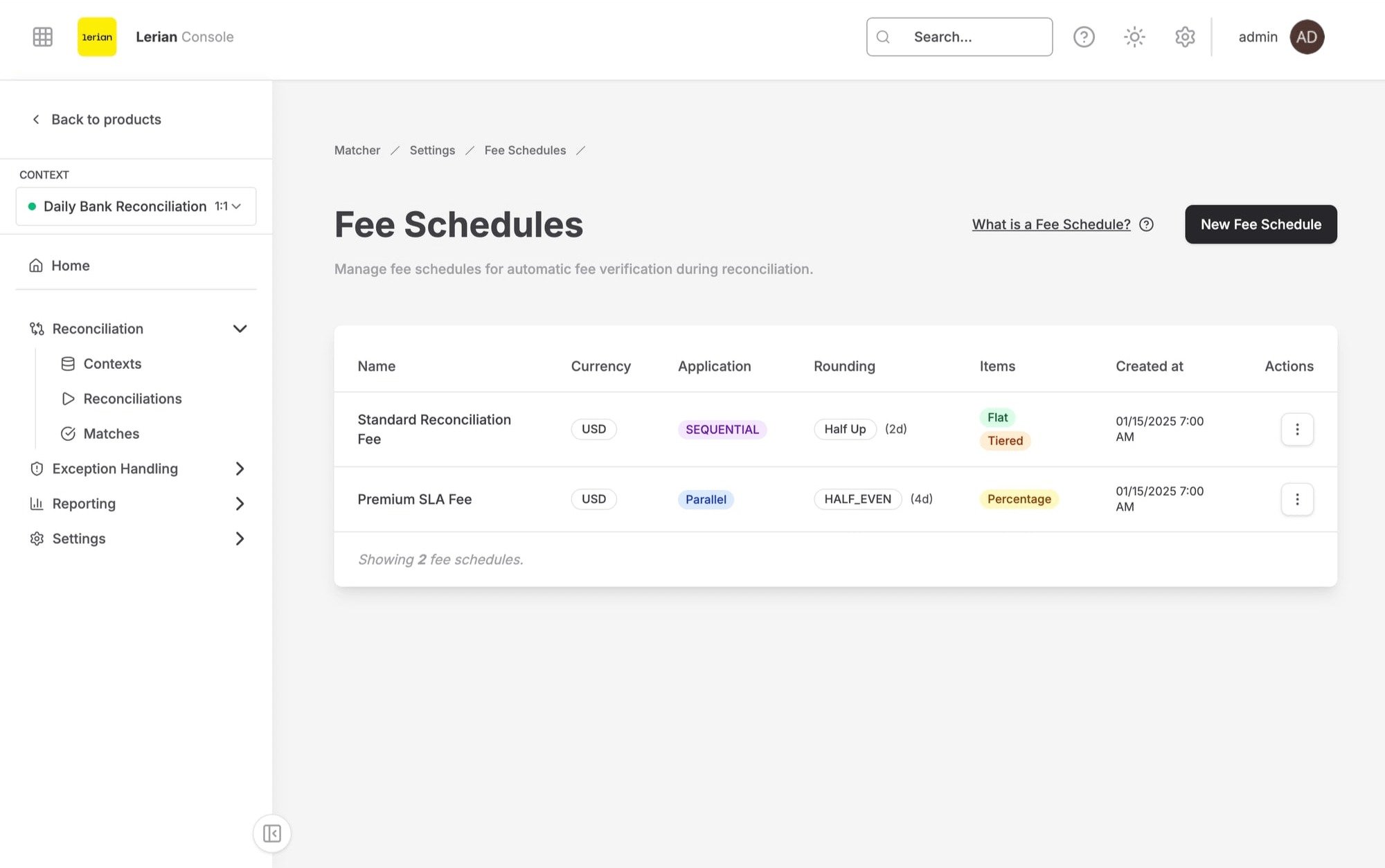
Figure 1. Fee Schedules list.
Application order
Rounding modes
Structure types
Creating a fee schedule
Click the New schedule button at the top of the page. A slide-over sheet opens with the following sections.
Schedule fields
Fee items
After filling in the schedule fields, add at least one fee item. Click Add item:
Depending on the selected structure, additional fields appear:
You can add multiple items before submitting. Click Create schedule to save the fee schedule.
Fee items are immutable after creation. To change item structures, create a new schedule.
Editing a fee schedule
Click Edit on a fee schedule row. The slide-over sheet opens with the current values pre-filled. You can modify the schedule name, application order, rounding mode, and rounding scale. The currency field is locked after creation, and fee items are shown read-only. Click Save changes to apply.
Simulating a fee schedule
Click Simulate on a fee schedule row to estimate fees for a given amount without recording anything. The Simulate fees dialog asks for:
Click Run simulation. The results show:
- Gross — The input amount
- Total fee — The total fees deducted
- Net — The amount remaining after fees
Deleting a fee schedule
Click Delete on a fee schedule row. The confirmation dialog warns that deleting permanently removes the schedule and can break fee rules that reference it. Click Delete schedule to proceed.
If fee rules still reference the schedule, deletion is blocked and a Fee schedule still in use dialog lists the contexts whose fee rules reference it. Remove those fee rules first.
Fee rules
Below the schedule catalog, the page hosts a Fee rules section — context-scoped rules binding schedules to matching predicates. Select a context, then:
- Click New fee rule to bind a fee schedule to a matching side and a set of field predicates. Predicates compare transaction fields with operators such as equals, does not equal, is one of, is present, greater than, at least, less than, at most, and in the inclusive range.
- Use the inline Edit and Delete buttons on a rule row to change or remove it.