Why Access Manager?
Access Manager replaces the Console’s legacy access control with a modern, API-driven model backed by a centralized Identity Provider. It’s built for teams that need clarity, consistency, and control over who can access what. Each Enterprise environment is single-tenant, which means your access rules are isolated and secure by design. The Identity Provider takes care of:- User authorization.
- Role and group management.
- Seamless integration between UI and API.
Our access goals
- Centralize authentication and authorization.
- Make it easy to manage users and permissions through a consistent interface.
- Support role-based access (RBAC) for real-world team structures.
- Provide a scalable solution for fast-growing teams.
Role-Based Access Model (RBAC)
Once Access Manager is activated, you can assign default roles to users. Each role defines what that user can do inside the Console:| Role | Description | Permissions |
|---|---|---|
| Admin | Full system administrator | Complete access to all features, settings, and resources—including user and role management. |
| Editor | Content and settings manager | Can modify content and update configurations within assigned areas, but doesn’t have full admin rights. |
| Contributor | Task and content collaborator | Can create and contribute content or perform specific actions, but cannot change core settings. |
| Viewer | Read-only user | Can view data and system content but can’t make changes. Ideal for audits or monitoring. |
Using Access Manager in Midaz Console
Enabling Access Manager
After installing the Access Manager plugin, you still need to enable it for it to work. This means updating the Auth variables in the.env files of Midaz Ledger, Midaz Console, or any plugin where you want to use Access Manager.
Your configuration should look like this:
Where to update
You’ll find the relevant.env files in these locations:
-
Midaz Ledger and Midaz Console
/midaz/components/onboarding/midaz/components/transaction/midaz/components/console
-
Other plugins
- The
.envfile should be in the root directory of the plugin.
- The
Rebuild after changes
After updating the environment, rebuild your Docker images to apply the changes:Accessing Midaz Console
After you enable the Access Manager plugin, the login page will appear when you access Midaz Console (Figure 1).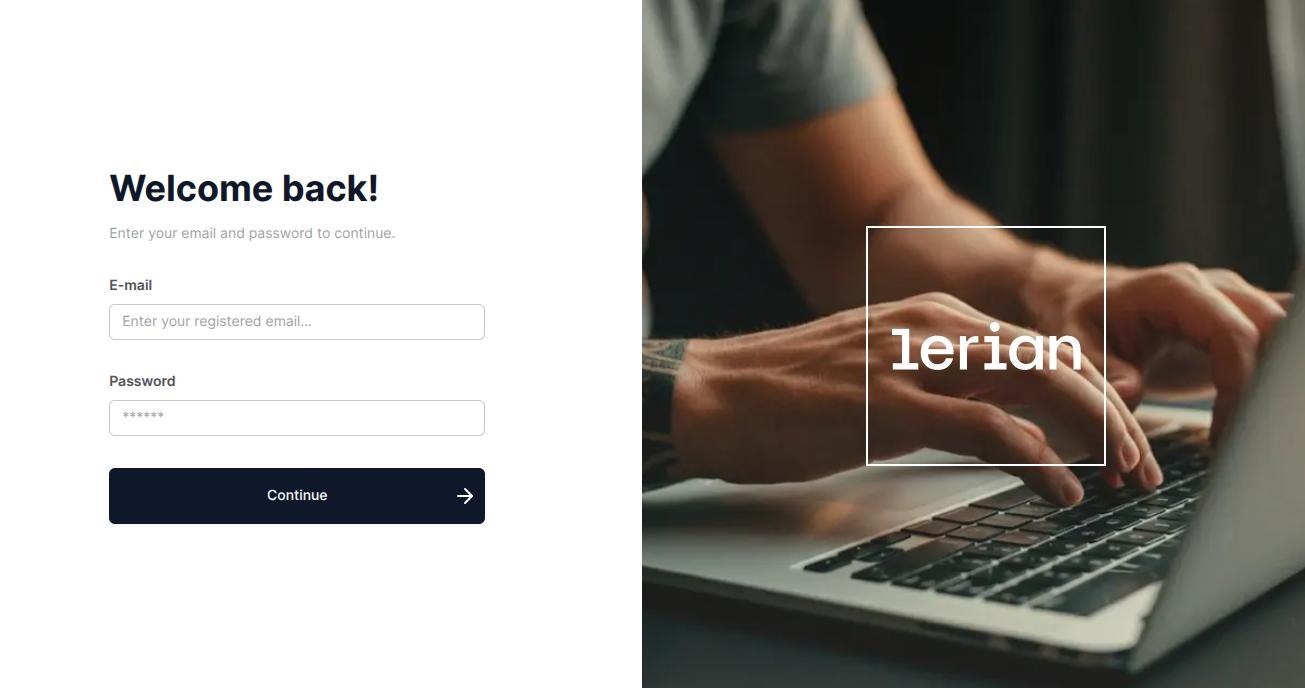
First login as admin
The first time you log in as an admin, you can use the default admin credentials:- Email:
[email protected] - Password:
Lerian@123
ImportantDon’t forget to update the admin password after your first login. It’s a simple step that helps keep your environment secure.
Managing users
ImportantOnly Admins are allowed to manage users. This includes viewing, creating, editing, resetting passwords, and deleting user accounts. Make sure this level of access is granted responsibly.
Viewing users
To view all users available, click the gear icon ( ) in the top-right corner, then select Users (Figure 2).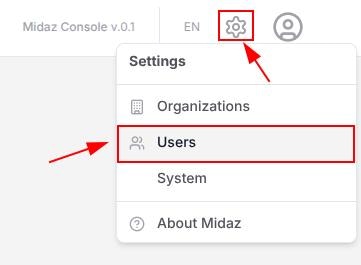
Creating a user
To create a user, follow these steps: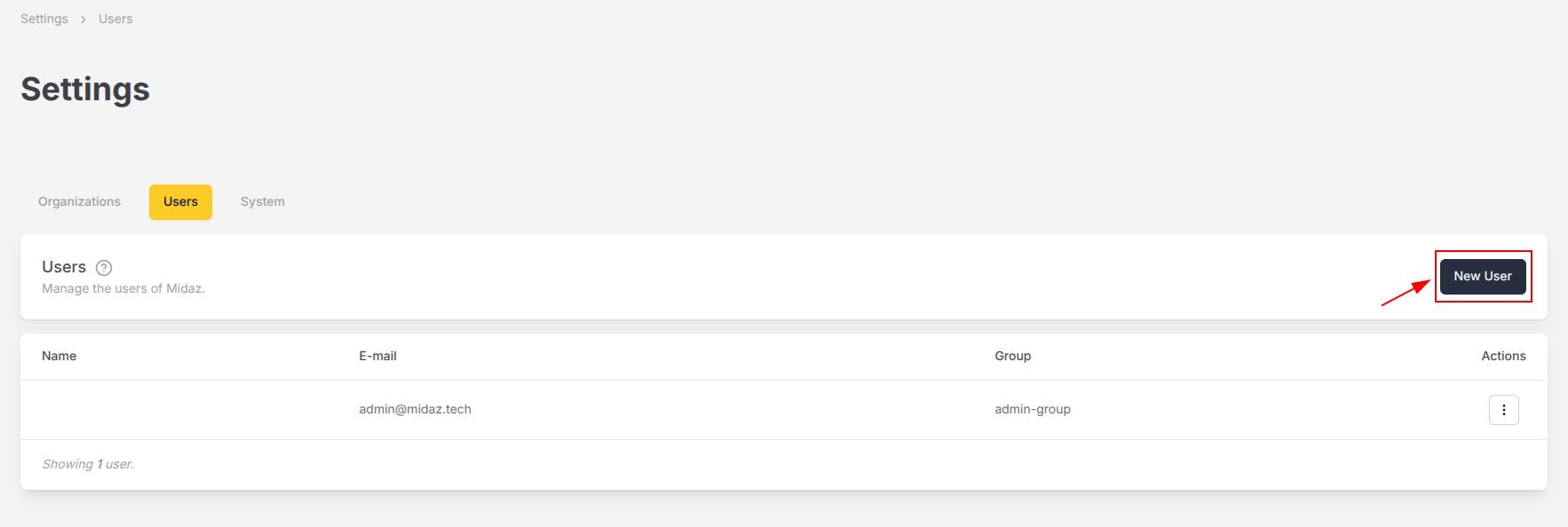
Editing a user
To edit a user’s personal information, follow these steps:From the Users page, find the user that you want to edit, click the three dots () from the Actions column, and select Edit (figure 4).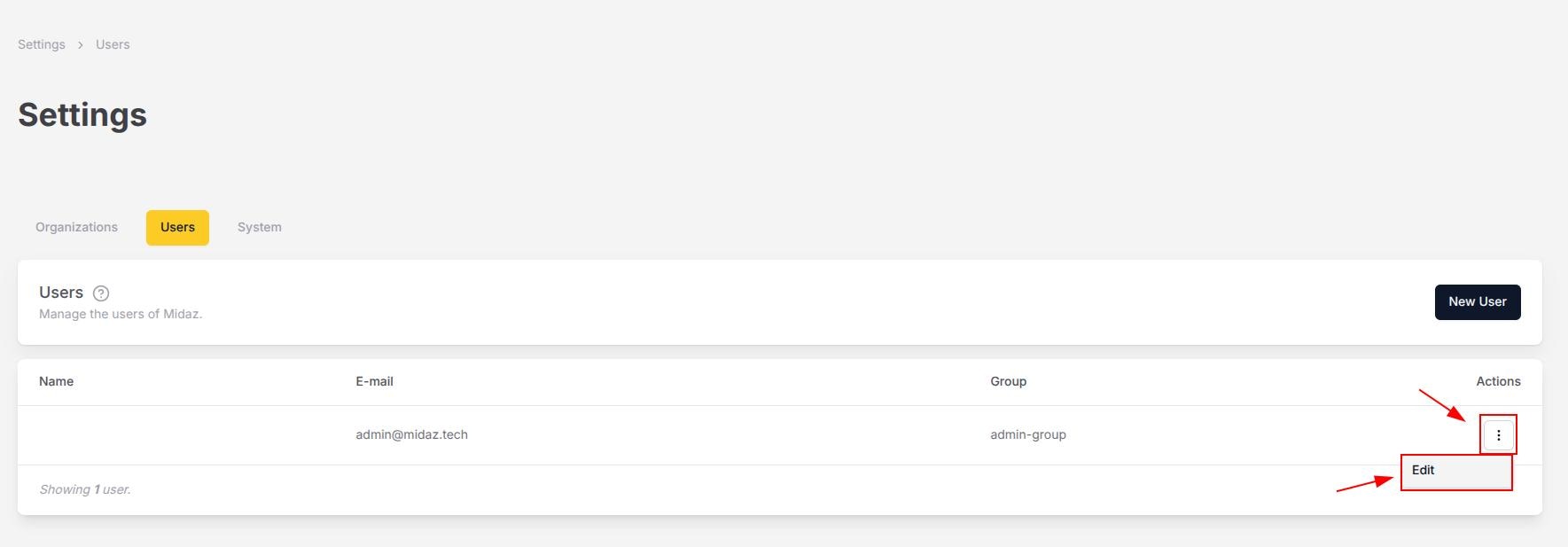
Changing a user’s password
From the Users page, find the user that you want to edit, click the three dots () from the Actions column, and select Edit.
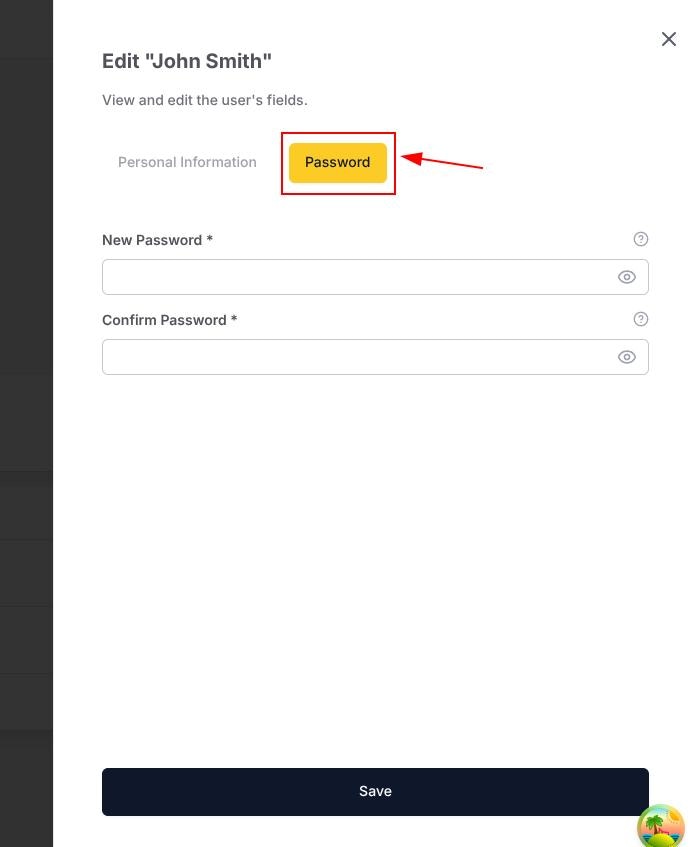
Deleting a user
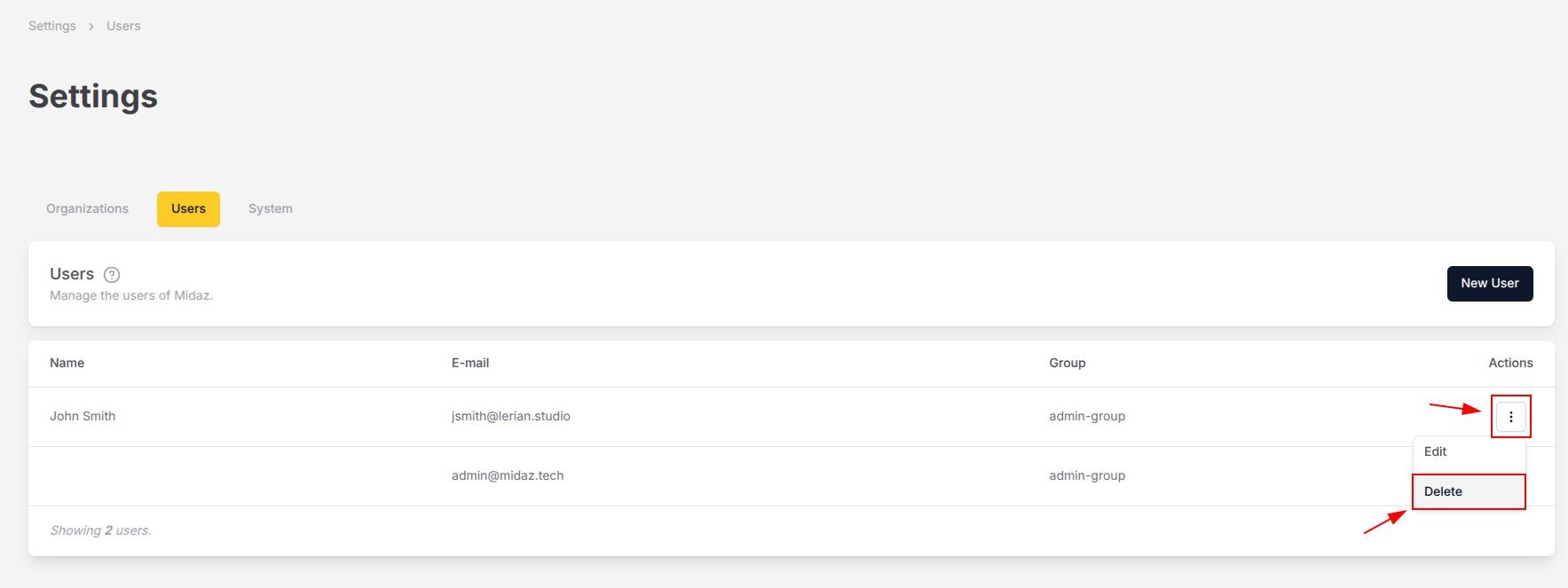
To delete a User, follow these steps:From the User page, find the User that you want to delete, click the three dots () from the Actions column, and select Delete (Figure 6).