

The Actor Mappings page in the Matcher module lets you associate opaque actor IDs (from JWT authentication) with human-readable information such as display name and email. This supports GDPR compliance by enabling pseudonymization and right-to-erasure operations directly from the console.Documentation Index
Fetch the complete documentation index at: https://docs.lerian.studio/llms.txt
Use this file to discover all available pages before exploring further.
Accessing the Actor Mappings page
Navigate to Matcher > Settings > Actor Mappings in the left sidebar.
A collapsible “What is an Actor Mapping?” helper is available at the top of the page explaining that an actor mapping associates an opaque actor ID with human-readable PII to support GDPR compliance.
Searching for an actor mapping
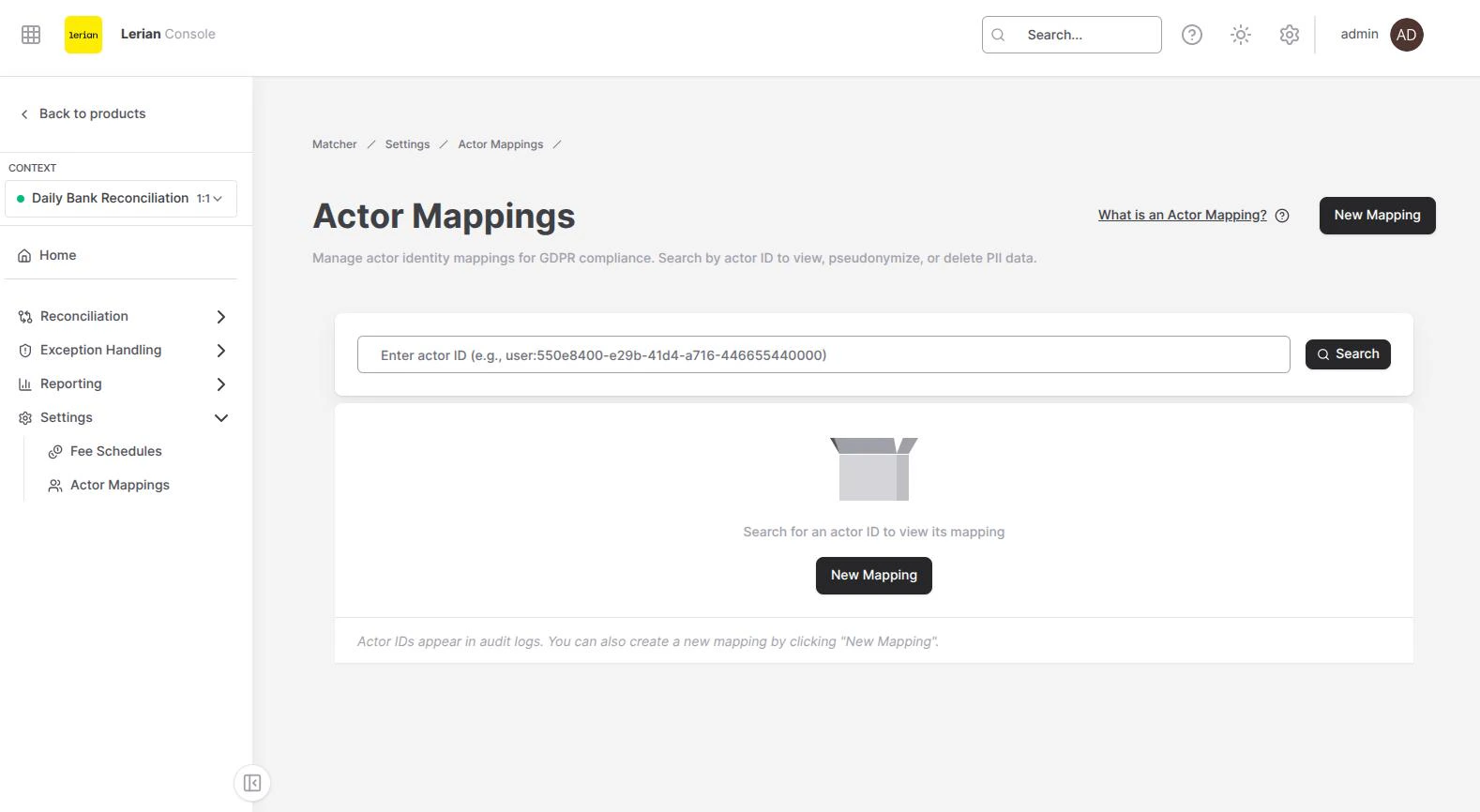
- If a mapping exists, a result card appears with the actor’s details.
- If no mapping is found, the page offers a Create Mapping button so you can register a new one immediately.
The search field can be pre-populated from a URL query parameter (e.g. when navigating from audit logs), allowing deep links directly to a specific actor mapping.
Result card
When a mapping is found, the result card displays:
| Field | Description |
|---|---|
| Actor ID | The opaque identifier from JWT authentication |
| Display Name | The human-readable name, or an em-dash if not set |
| The email address, or an em-dash if not set | |
| Created at | Date and time the mapping was created |
| Updated at | Date and time of the last update |
Creating an actor mapping
Click the New Mapping button at the top of the page. A slide-over sheet opens with the following fields:
| Field | Description |
|---|---|
| Actor ID | The opaque identifier from JWT authentication (e.g. user:550e8400-e29b-41d4-a716-446655440000). Maximum 255 characters — values exceeding this limit are rejected with a 400 Bad Request validation error. Leading and trailing whitespace is automatically trimmed. Cannot be changed after creation |
| Display Name | The human-readable name (e.g. “John Doe”). Optional, but at least one of Display Name or Email is required |
| The email address (e.g. “john.doe@example.com”). Optional, but at least one of Display Name or Email is required |
Editing an actor mapping
Click the Edit button on the result card. The slide-over sheet opens with the current values pre-filled. The Actor ID field is locked — only the display name and email can be modified. Click Update Mapping to apply changes.
Pseudonymizing an actor mapping
Click the Pseudonymize button on the result card. A confirmation dialog explains that this action replaces the display name and email with
[REDACTED] while preserving the actor ID link. This operation cannot be undone.
Confirm to proceed. After pseudonymization, the result card shows [REDACTED] values and a yellow Pseudonymized badge.
Pseudonymization supports GDPR Article 4(5) by making personal data no longer attributable to a specific individual without additional information, while keeping the structural link intact for reconciliation purposes.
Deleting an actor mapping
Click the Delete button on the result card. A confirmation dialog warns that this action permanently deletes the actor mapping (right-to-erasure) and is irreversible. Confirm to proceed. The search state is cleared after deletion.
Deletion supports GDPR Article 17 (right to erasure) by completely removing the mapping between the opaque actor ID and any personal data.