

The Fee Schedules page in the Matcher module lets you define expected fees — flat, percentage, or tiered — that the reconciliation engine uses to automatically verify and flag fee discrepancies between matched transactions.Documentation Index
Fetch the complete documentation index at: https://docs.lerian.studio/llms.txt
Use this file to discover all available pages before exploring further.
Accessing the Fee Schedules page
Navigate to Matcher > Settings > Fee Schedules in the left sidebar.
A collapsible “What is a Fee Schedule?” helper is available at the top of the page explaining that a fee schedule defines expected fees that the reconciliation engine uses to automatically verify and flag fee discrepancies between matched transactions.
Fee schedules table
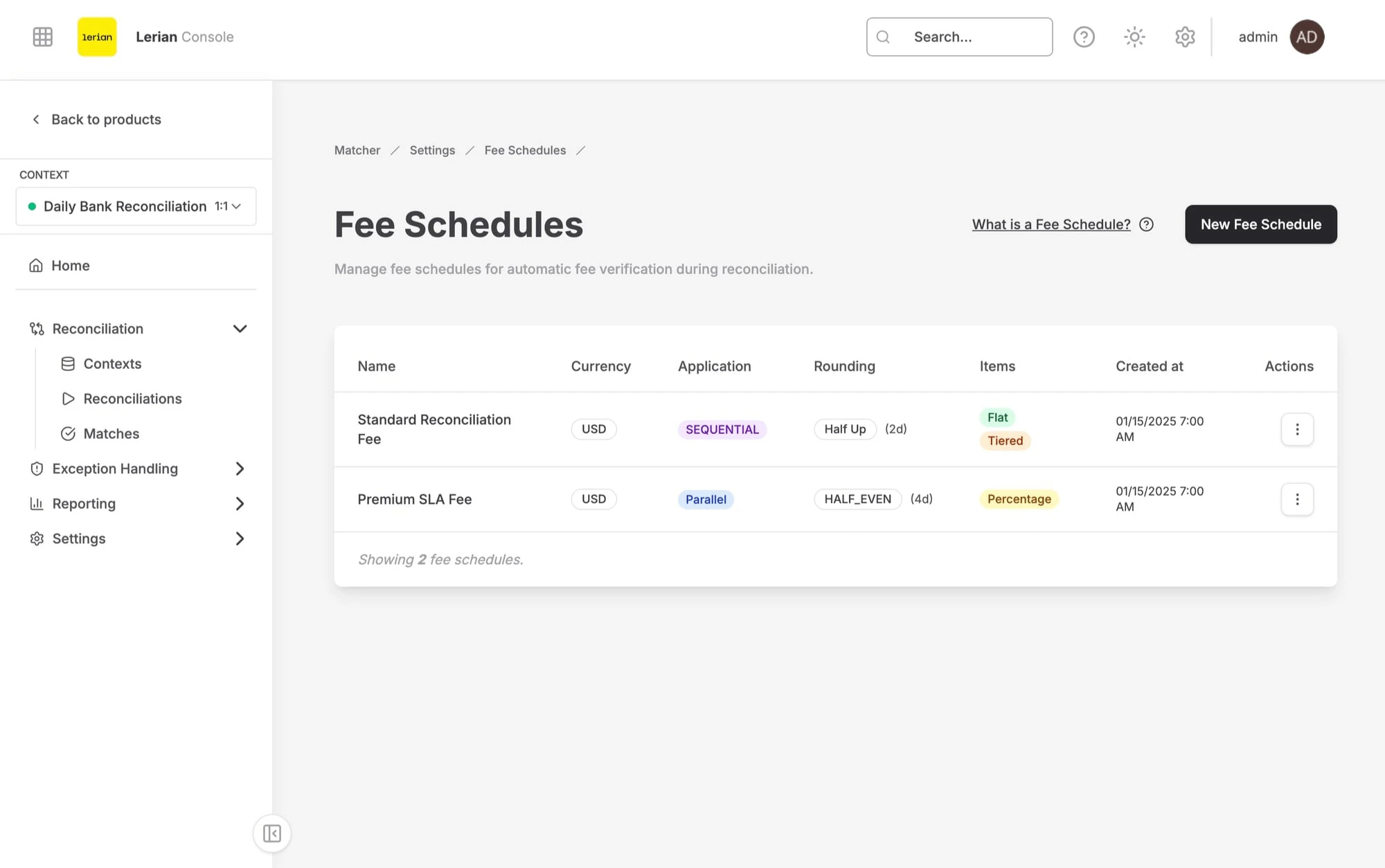
| Column | Description |
|---|---|
| Name | The fee schedule name |
| Currency | The currency code (e.g. BRL), shown as a badge |
| Application | How fee items are applied: Parallel (all items calculated on the original amount) or Cascading (each item calculated on the net amount after previous items) |
| Rounding | The rounding mode followed by the number of decimal places — e.g. “HALF_UP (2d)“ |
| Items | A list of badges representing each fee item’s structure type (Flat, Percentage, or Tiered) |
| Created at | Date and time the schedule was created |
| Actions | Dropdown menu with Edit, Simulate, and Delete options |
Application order
| Mode | Description |
|---|---|
| Parallel | All fee items are calculated independently against the original gross amount |
| Cascading | Fee items are applied sequentially — each item uses the net amount after the previous item’s fee was deducted |
Rounding modes
| Mode | Description |
|---|---|
| Half Up | Rounds to the nearest neighbor; rounds up on a 0.5 boundary |
| Bankers | Rounds to the nearest neighbor; rounds to the nearest even digit on a 0.5 boundary |
| Floor | Always rounds toward negative infinity |
| Ceil | Always rounds toward positive infinity |
| Truncate | Drops excess decimal places without rounding |
Structure types
| Type | Description |
|---|---|
| Flat | A fixed monetary amount (e.g. 5.00) |
| Percentage | A decimal rate applied to the base amount (e.g. 0.015 = 1.5%) |
| Tiered | A set of rate tiers, each with an optional upper bound |
Creating a fee schedule
Click the New Fee Schedule button at the top of the page. A slide-over sheet opens on the right side with the following sections.
Schedule fields
| Field | Description |
|---|---|
| Name | A descriptive name for the schedule (e.g. “Bank Fees BRL”). Max 100 characters |
| Currency | The three-letter currency code (e.g. BRL). Cannot be changed after creation |
| Application Order | Select Parallel or Cascading. Defaults to Parallel |
| Rounding Mode | Select one of: Half Up, Bankers, Floor, Ceil, Truncate. Defaults to Half Up |
| Decimal Places | Number of decimal places for rounding (0–10). Defaults to 2 |
Fee items
After filling in the schedule fields, add at least one fee item. Click Add Item to open the item sub-form:| Field | Description |
|---|---|
| Name | A descriptive name for the fee item (e.g. “Wire Fee”). Max 100 characters |
| Priority | Determines the order in which items are applied (integer starting from 1) |
| Structure Type | Select Flat, Percentage, or Tiered |
| Structure Type | Additional Field | Description |
|---|---|---|
| Flat | Fixed Amount | The fixed fee value (e.g. “5.00”) |
| Percentage | Rate (%) | A decimal rate (e.g. “0.015” for 1.5%) |
| Tiered | Tiers (JSON) | A JSON array of tiers. Each tier has a rate and optionally an upTo threshold — e.g. [{"rate":"0.02","upTo":"1000"},{"rate":"0.01"}] |
Editing a fee schedule
Open the Actions dropdown on a fee schedule row and select Edit. The slide-over sheet opens with the current values pre-filled. You can modify the schedule name, application order, rounding mode, and decimal places. The currency field is locked after creation. Fee items are displayed as read-only and cannot be added or removed during editing. Click Save to apply changes.
Simulating a fee schedule
Open the Actions dropdown and select Simulate to test how a fee schedule calculates fees for a given amount. The simulation dialog asks for:
| Field | Description |
|---|---|
| Gross Amount | The amount to simulate against (e.g. “1000.00”) |
| Currency | Pre-filled from the schedule’s currency |
- Gross Amount — The input amount
- Total Fees — The total fees deducted
- Net Amount — The amount remaining after fees
Deleting a fee schedule
Open the Actions dropdown and select Delete. A confirmation dialog warns that this action is irreversible and the fee schedule will be permanently deleted. Confirm to proceed.