

The Operational History page in the Matcher module provides a centralized view of ingestion jobs, reconciliation runs, and export jobs for your reconciliation contexts. The page is organized into three tabs: Ingestion Jobs, Match Runs, and Exports.Documentation Index
Fetch the complete documentation index at: https://docs.lerian.studio/llms.txt
Use this file to discover all available pages before exploring further.
Accessing the Operational History page
Navigate to Matcher → Reporting → Operational History in the left sidebar.
Filtering by context
At the top of the page, a context selector lets you filter results by reconciliation context. Select a context to view its operational history across all three tabs.
If no contexts are available yet, configure sources for a context using the Sources page first.
Ingestion Jobs tab
The Ingestion Jobs tab lists all data ingestion jobs for the selected context.
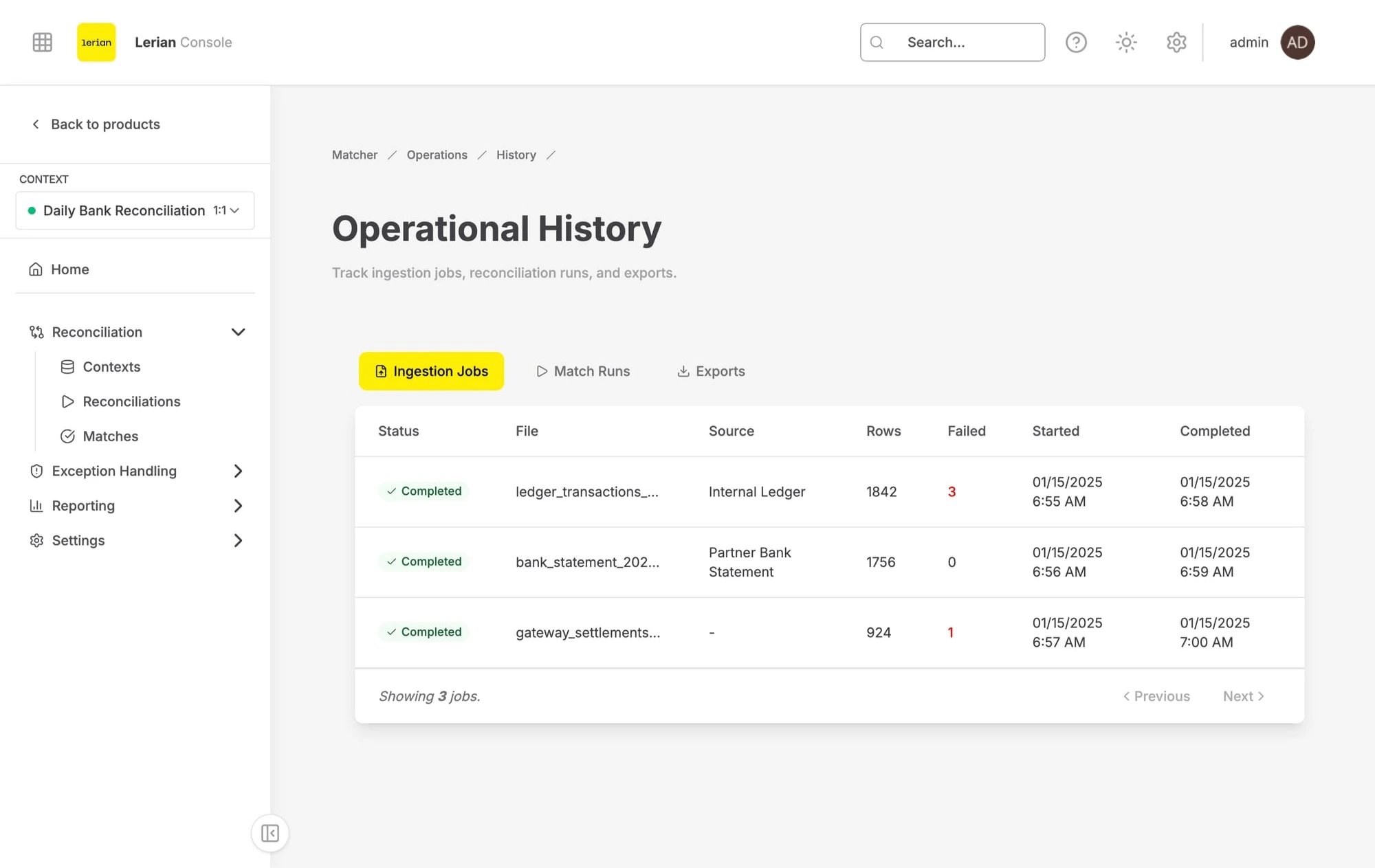
| Column | Description |
|---|---|
| Status | Current job status displayed as a colored badge |
| File | Name of the uploaded file |
| Source | The data source the file was uploaded to |
| Rows | Total number of rows in the file |
| Failed | Number of rows that failed ingestion. Highlighted in red when greater than zero |
| Started | When the ingestion job started processing |
| Completed | When the ingestion job finished |
Ingestion job statuses
| Status | Description |
|---|---|
| Queued | The job has been submitted and is waiting to be processed |
| Processing | The file is currently being ingested |
| Completed | The file was successfully ingested |
| Failed | The ingestion failed — check the file format and try again |
Match Runs tab
The Match Runs tab displays all reconciliation runs for the selected context. Active runs refresh automatically every few seconds.
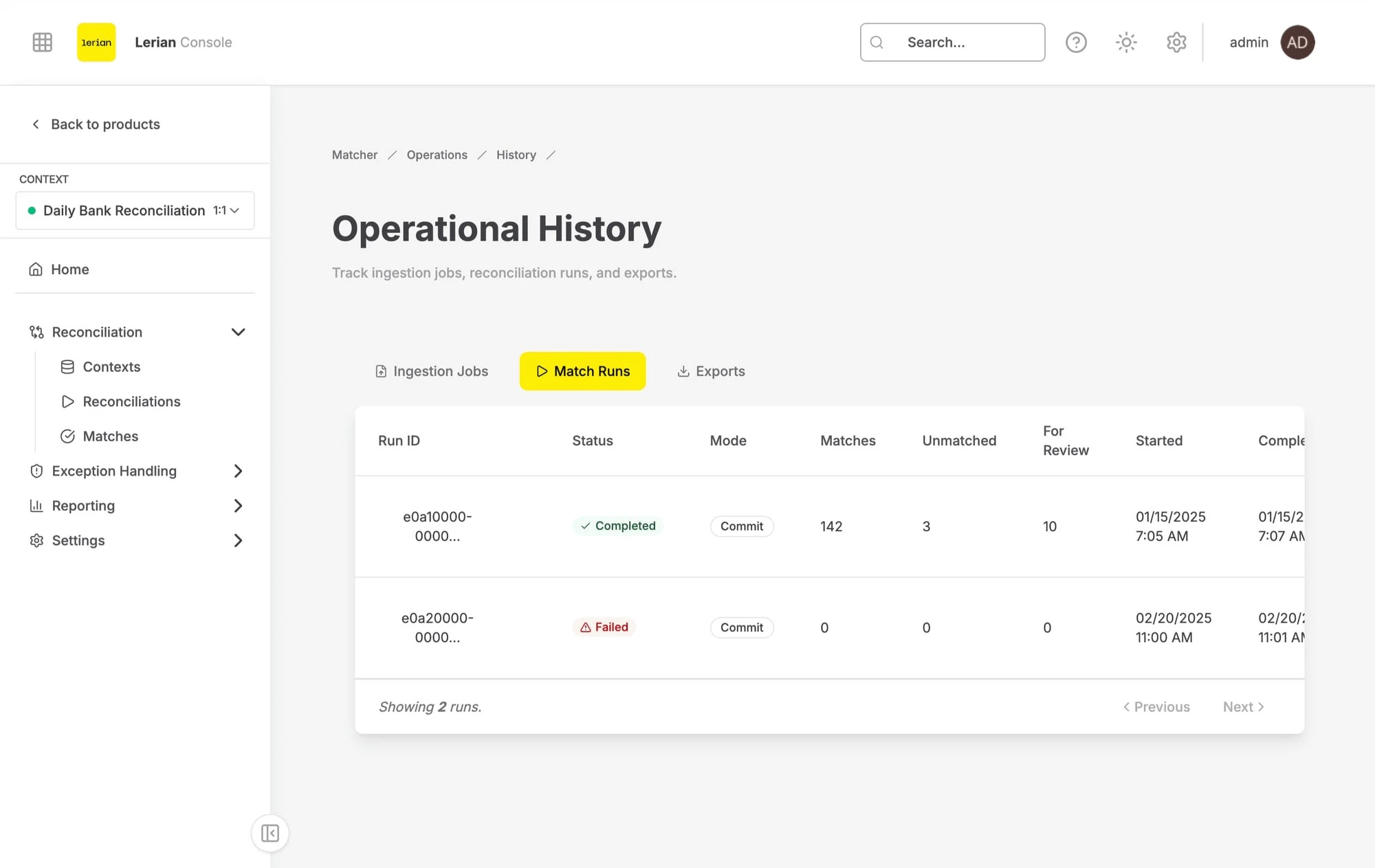
| Column | Description |
|---|---|
| Run ID | Unique identifier for the run (copyable) |
| Status | Current run status displayed as a colored badge |
| Mode | Either Dry Run (preview only) or Commit (applies results) |
| Matches | Number of successfully matched records |
| Unmatched | Total unmatched records from both sides |
| For Review | Records pending manual review from both sides |
| Started | When the run started processing |
| Completed | When the run finished |
Run modes
| Mode | Description |
|---|---|
| Dry Run | Simulates the reconciliation without persisting results — useful for testing rules |
| Commit | Executes the reconciliation and persists all match results |
Exports tab
The Exports tab shows all report export jobs for the selected context. Active exports refresh automatically every few seconds.
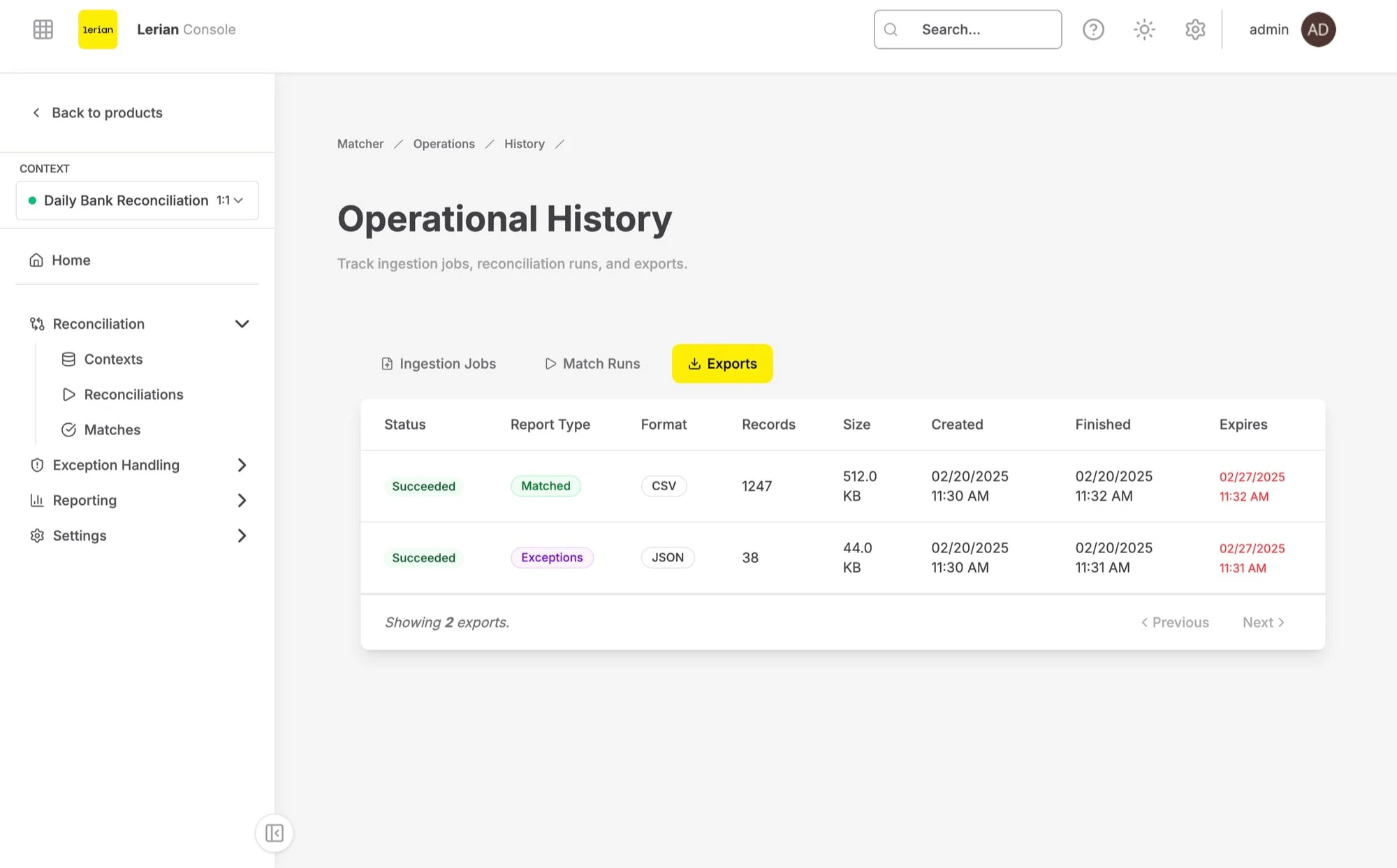
| Column | Description |
|---|---|
| Status | Current export status displayed as a colored badge |
| Report Type | Type of report being exported, shown as a colored badge |
| Format | File format of the export (CSV, JSON, or XML) |
| Records | Number of records written to the export file |
| Size | File size of the export |
| Created | When the export job was created |
| Finished | When the export job completed |
| Expires | When the download link expires. Shown in red if already expired |
Export statuses
| Status | Description |
|---|---|
| Queued | The export is waiting to be processed |
| Running | The export is currently being generated |
| Succeeded | The export completed successfully |
| Failed | The export failed |
| Expired | The download link has expired |
| Canceled | The export was canceled |
Report types
| Type | Description |
|---|---|
| Matched | Records that were successfully matched |
| Unmatched | Records that could not be matched |
| Summary | High-level summary of reconciliation results |
| Variance | Records with discrepancies between matched sides |
| Exceptions | Records flagged as exceptions requiring review |