

Use the Disputes page in the Matcher module to view and manage all disputes across your reconciliation exceptions. Disputes are formal challenges raised against exceptions, allowing you to submit evidence, track state changes, and record resolutions.Documentation Index
Fetch the complete documentation index at: https://docs.lerian.studio/llms.txt
Use this file to discover all available pages before exploring further.
Accessing the Disputes page
Navigate to Matcher > Exception Handling > Disputes in the left sidebar. The page displays a paginated list of all disputes for the selected context.
A collapsible “What is a Dispute?” helper is available at the top of the page explaining that a dispute is a formal challenge raised against an exception.
Filters
Use the filter bar at the top of the list to narrow results:
| Filter | Options |
|---|---|
| State | Open, Pending Evidence, Won, Lost |
| Category | Bank Fee Error, Unrecognized Charge, Duplicate Transaction, Amount Mismatch, Other |
Disputes table
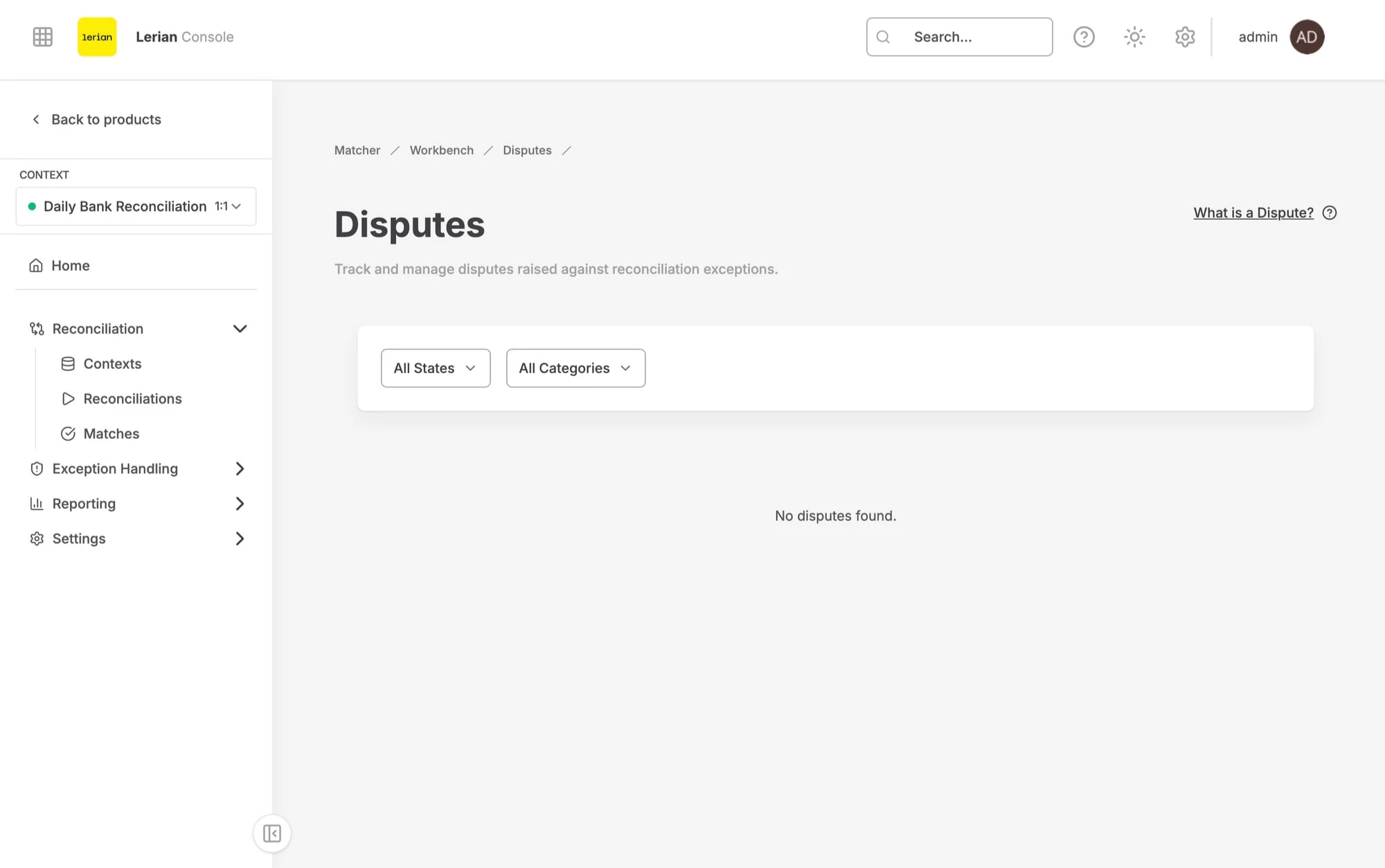
| Column | Description |
|---|---|
| ID | Unique dispute identifier (copyable) |
| Category | The dispute category badge |
| State | Current state badge |
| Description | Short description of the dispute (truncated in the list) |
| Opened by | Who opened the dispute |
| Evidence | Number of evidence items submitted |
| Updated | Date and time of the last update |
| Actions | Dropdown menu with a link to the dispute detail page |
Dispute states
| State | Description |
|---|---|
| Open | The dispute has been opened and is awaiting review |
| Pending Evidence | Additional evidence has been requested or is being collected |
| Won | The dispute was resolved in favor of the challenger |
| Lost | The dispute was resolved against the challenger |
Dispute categories
| Category | Description |
|---|---|
| Bank Fee Error | A discrepancy caused by an incorrect bank fee |
| Unrecognized Charge | A charge that cannot be identified or attributed |
| Duplicate Transaction | A transaction that appears to have been processed more than once |
| Amount Mismatch | The amounts between source and target do not match |
| Other | Any other dispute category not covered above |
Dispute detail page
Click on a dispute row to open its detail page. The layout uses a three-column design: a left-side section navigator, the main content area in the center, and a summary panel on the right.
Dispute Information
The first section displays read-only details about the dispute:| Field | Description |
|---|---|
| Category | The dispute category |
| Opened by | Who created the dispute |
| Created | When the dispute was created |
| Exception | The related exception ID (copyable, links to the exception detail page) |
| Description | Full description of the dispute |
Evidence
The Evidence section shows a timeline of all submitted evidence items. Each item displays:- Submitted by — Who submitted the evidence
- Date — When it was submitted
- Comment — The evidence description
- File URL — Link to an attached file, if provided
| Field | Description |
|---|---|
| Comment | Description of the evidence (required) |
| File URL | HTTPS link to a supporting file (optional) |
Evidence can only be added when the dispute is in the Open or Pending Evidence state.
Resolution
The Resolution section shows the outcome of the dispute:- If the dispute was Won, a green banner displays the resolution text.
- If the dispute was Lost, a red banner displays the resolution text.
- If the dispute is still open, a message indicates that it can be closed to record the outcome.
| Field | Description |
|---|---|
| Outcome | Select Won or Lost |
| Resolution | Free-text explanation of the resolution (required) |
Summary panel
The right-side summary panel displays at a glance:
- State and category badges
- Opened by
- Evidence count
- Created and last updated dates
- View Exception link to navigate to the related exception