

Use the Contexts page in the Matcher module to create and manage reconciliation contexts. A context groups together the sources, rules, and schedules that define a specific reconciliation workflow.Documentation Index
Fetch the complete documentation index at: https://docs.lerian.studio/llms.txt
Use this file to discover all available pages before exploring further.
Accessing the Contexts page
To open the Contexts page, select Contexts under the Reconciliation section of the left sidebar.
Context list
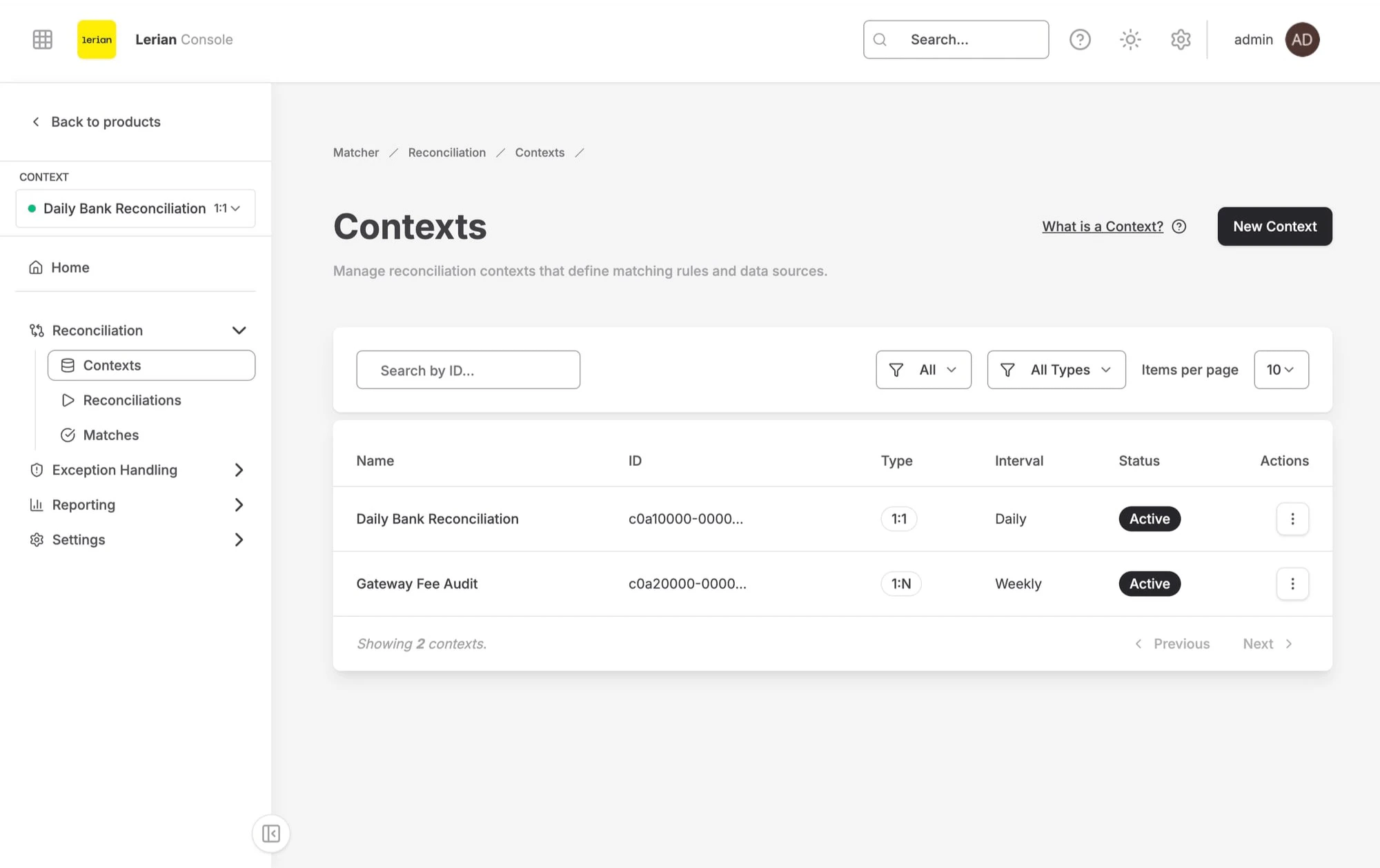
| Column | Description |
|---|---|
| Name | The context name |
| ID | The unique context identifier |
| Type | Matching cardinality (1:1, 1:N, or N:M) |
| Interval | How often reconciliation runs (Daily, Weekly, Monthly, Quarterly, or Yearly) |
| Status | Current state of the context |
Context statuses
| Status | Description |
|---|---|
| Active | The context is operational and accepts reconciliation runs |
| Paused | The context is temporarily suspended |
| Draft | The context is being configured and is not yet active |
| Archived | The context is no longer in use and has been archived |
Creating a new context
Fill in the General Information section:
| Field | Description |
|---|---|
| Name (required) | A descriptive name for the context (e.g., “Daily Bank Reconciliation”) |
| Type (required) | Matching cardinality: 1:1 (one-to-one), 1:N (one-to-many), or N:M (many-to-many) |
| Interval (required) | How often reconciliation runs: Daily, Weekly, Monthly, Quarterly, or Yearly |
Optionally configure Fee Tolerance settings:
| Field | Description |
|---|---|
| Absolute | Maximum absolute difference allowed between matched amounts |
| Percentage | Maximum percentage difference allowed between matched amounts |
| Normalization | Method used to normalize fee values before comparison: NET or GROSS |
Optionally enable Auto-match on upload. When turned on, the reconciliation engine runs automatically as soon as new data is uploaded to this context.
Context detail page
Click on a context name or select Details from the actions menu to open the context detail page. The detail page is organized into the following sections:
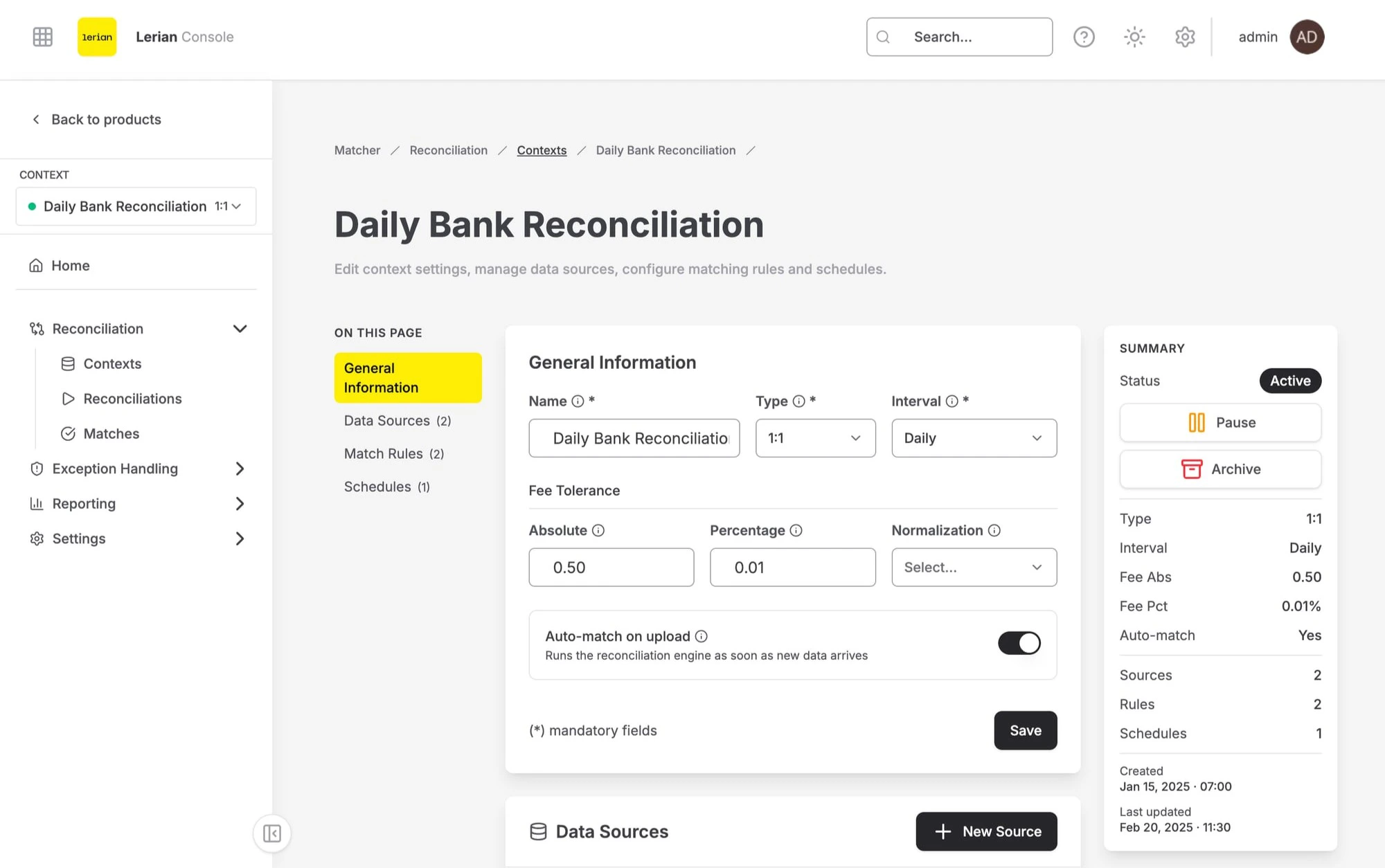
General Information
Displays the context’s current settings including name, type, interval, fee tolerance, and auto-match configuration. The page header shows the context name, status badge, type, interval, and creation date. Use the status action buttons to pause, resume, or archive the context.Data Sources
Lists all data sources configured for this context. From here you can create, edit, and delete sources. For more details, see Context Sources.Match Rules
Lists all match rules configured for this context. From here you can create, edit, and delete rules. For more details, see Context Rules.Schedules
Lists all reconciliation schedules configured for this context. Schedules define when reconciliation runs execute automatically. For more details, see Context Schedules.Sources, Rules, and Schedules are all managed from within the context detail page. There are no separate standalone pages for these entities.