

The Exception Details page in the Matcher module provides full information about a reconciliation exception, tools to resolve it, and a complete audit trail of all actions taken.Documentation Index
Fetch the complete documentation index at: https://docs.lerian.studio/llms.txt
Use this file to discover all available pages before exploring further.
Accessing exception details
Click on any exception row from the Exceptions page, or select Details from the row’s action menu, to open the exception detail page.
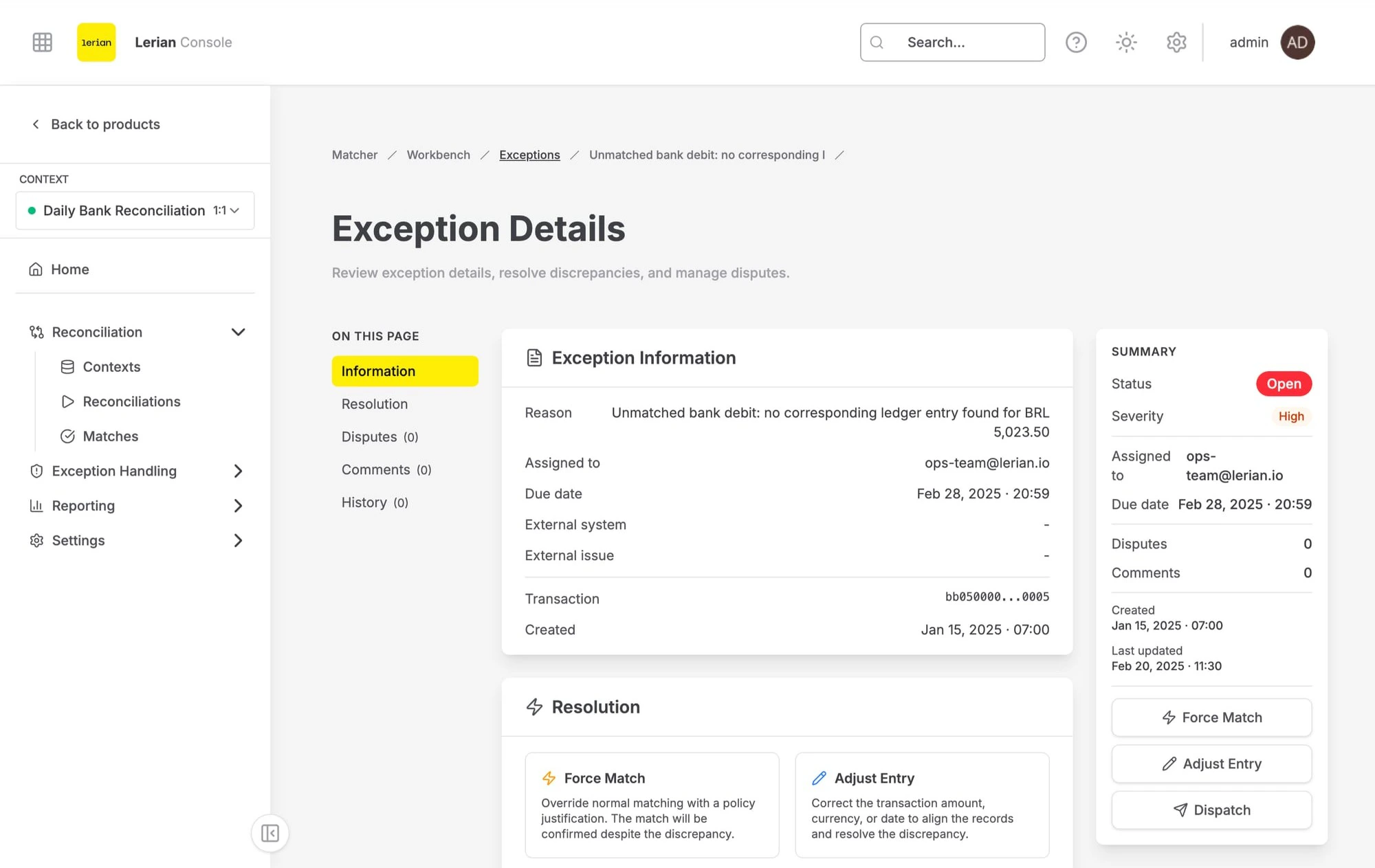
Page sections
The exception detail page is organized into five scrollable sections. Use the left-side On this page navigator to jump between them.
Information
The Information section displays read-only details about the exception:| Field | Description |
|---|---|
| Reason | Why the exception was created |
| Assigned to | The person responsible for resolving the exception |
| Due date | The resolution deadline |
| External system | Reference to an external tracking system, if dispatched |
| External issue | External issue identifier, if applicable |
| Transaction | The related transaction ID (copyable) |
| Created | When the exception was created |
| Field | Description |
|---|---|
| Resolution type | How the exception was resolved (Force Match or Adjust Entry) |
| Resolution reason | The reason code selected during resolution |
| Resolution notes | Free-text notes provided during resolution |
Resolution
The Resolution section provides the action cards for resolving the exception. If the exception is already resolved, a confirmation banner displays the resolution type and notes. If the exception is pending resolution (dispatched to an external system), an informational banner indicates that the system is awaiting external confirmation. Otherwise, the following action cards are available: Force Match Opens a modal to override normal matching with a policy justification. Fields:| Field | Description |
|---|---|
| Override Reason | Select a reason: Policy Exception, Ops Approval, Customer Dispute, or Data Correction |
| Justification | Free-text explanation (required) |
| Field | Description |
|---|---|
| Reason Code | Select a reason: Amount Correction, Currency Correction, Date Correction, or Other |
| Amount | The adjusted amount (required). Must be a positive number — zero or negative values are rejected. |
| Currency | Three-letter ISO 4217 currency code (required) |
| Effective Date | The date the adjustment takes effect (required) |
| Notes | Free-text explanation (required) |
| Field | Description |
|---|---|
| Target System | The destination system. Must be one of the supported dispatch targets: JIRA, ServiceNow, Webhook, or Manual. See Exception Routing for details. |
| Queue / Project | Optional queue or project identifier (for example, OPS-RECONCILIATION) |
422 Unprocessable Entity error. Verify that the integration is set up in Exception Routing before dispatching.
The Dispatch action is only available from the summary panel’s action buttons, not from the center resolution section.
Disputes
The Disputes section lists all disputes associated with this exception. Each dispute shows its state, category, description, who opened it, and any submitted evidence. From this section you can:- Open a new dispute — Select a category and provide a description
- Add evidence to an open dispute — Submit a comment and optional file URL
- Close a dispute — Mark it as Won or Lost with a resolution text
Comments
The Comments section lets you add and delete text comments on the exception. Each comment displays the author, timestamp, and content. Type your comment in the text area and click Send (or press Ctrl+Enter / Cmd+Enter). Hover over a comment to reveal the delete button.Comments are disabled when the exception is resolved.
History
The History section provides a chronological audit trail of all actions taken on the exception. Each entry shows:| Field | Description |
|---|---|
| Actor | Who performed the action (or “system” for automated actions) |
| Date | When the action occurred |
| Action | A description of what happened |
| Changes | Key-value details of what changed, if applicable |
Summary panel
The right-side summary panel displays at a glance:
- Status and severity badges
- Assigned to and due date
- External system reference (if dispatched)
- Dispute and comment counts
- Created and last updated dates