

Use the Exceptions page in the Matcher module to view and manage reconciliation exceptions — transactions that could not be matched automatically and require human review.Documentation Index
Fetch the complete documentation index at: https://docs.lerian.studio/llms.txt
Use this file to discover all available pages before exploring further.
Accessing the Exceptions page
Navigate to Matcher > Exception Handling > Exceptions in the left sidebar. The page displays a paginated list of all exceptions for the selected context.
A collapsible “What is an Exception?” helper is available at the top of the page to explain the concept of reconciliation exceptions.
Filters
Use the filter bar at the top of the list to narrow results:
| Filter | Options |
|---|---|
| Status | Open, Assigned, Pending Resolution, Resolved |
| Severity | Low, Medium, High, Critical |
| Assigned to | Filter by the person assigned to resolve the exception |
| External System | Filter by the external system the exception was dispatched to (free-text — accepts any system identifier) |
| Date Range | Filter exceptions by creation date (from/to) |
Exception table
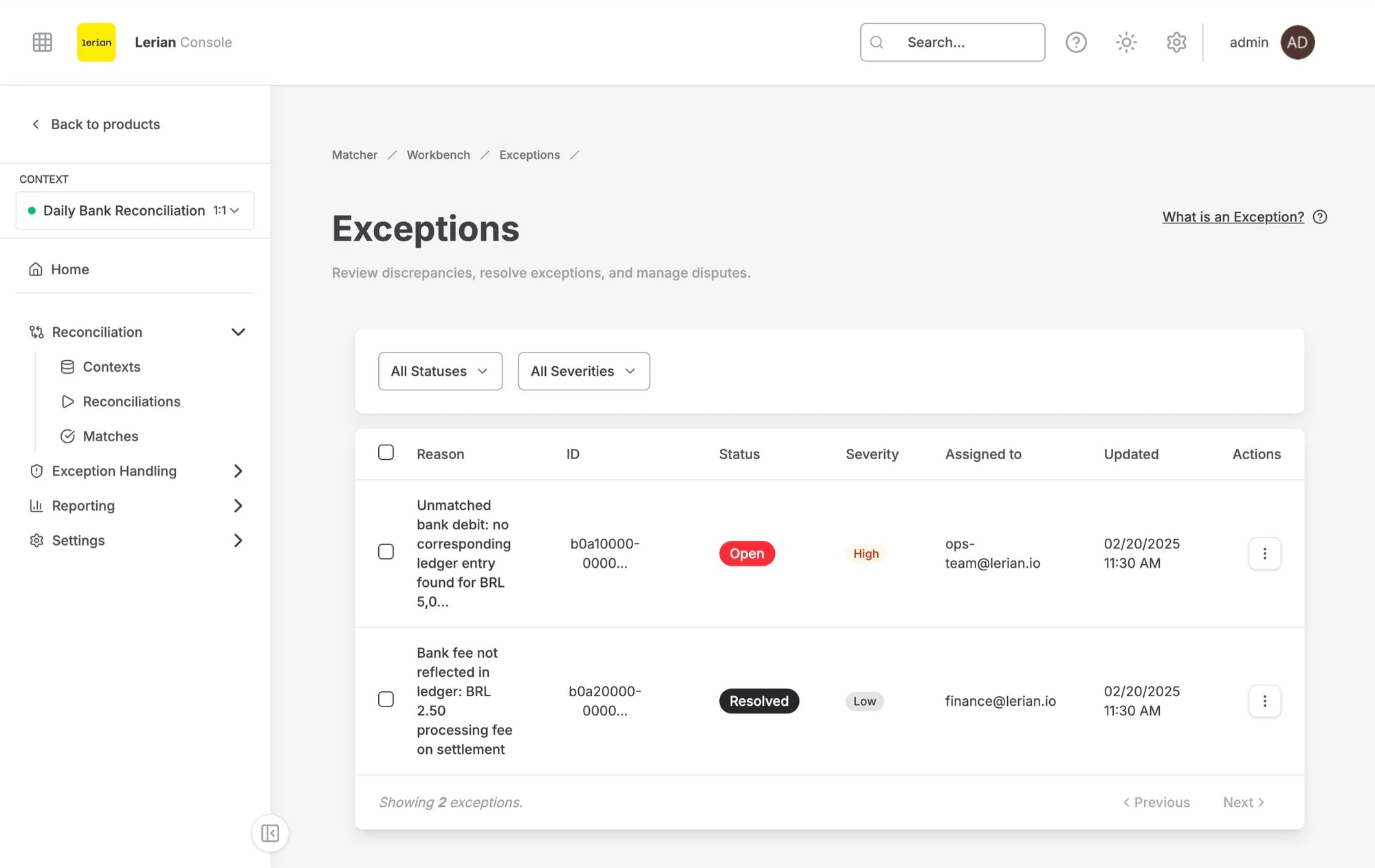
| Column | Description |
|---|---|
| Checkbox | Select individual exceptions for bulk operations |
| Reason | Why the exception was created (truncated in the list) |
| ID | Unique exception identifier (copyable) |
| Status | Current status badge |
| Severity | Severity level badge |
| Assigned to | The person responsible for resolving the exception |
| Updated | Date and time of the last update |
| Actions | Dropdown menu with a link to the exception detail page |
Bulk operations
Select multiple exceptions using the checkboxes in the first column. Once you have a selection, the following bulk actions become available:
- Bulk Assign — Assign all selected exceptions to a team member by entering their email address.
- Clear selection — Deselect all currently selected exceptions.
Exception severity
| Severity | Description |
|---|---|
| Critical | Requires immediate attention — high financial impact or compliance risk |
| High | Important discrepancy that should be resolved promptly |
| Medium | Moderate discrepancy that should be reviewed |
| Low | Minor discrepancy with limited impact |
Resolving exceptions
From the Exception Details page, you can resolve an exception using:
- Force Match — Override normal matching with a policy justification
- Adjust Entry — Correct the transaction amount, currency, or date to align the records
- Dispatch — Send the exception to an external system for handling
- Add a comment — Document your investigation for audit purposes